 BrainBit Infotech Teaching
Getting your account
You only do this once. After that you go straight to the second step whenever you want to set a test.
Open the teacher portal and ask for an account
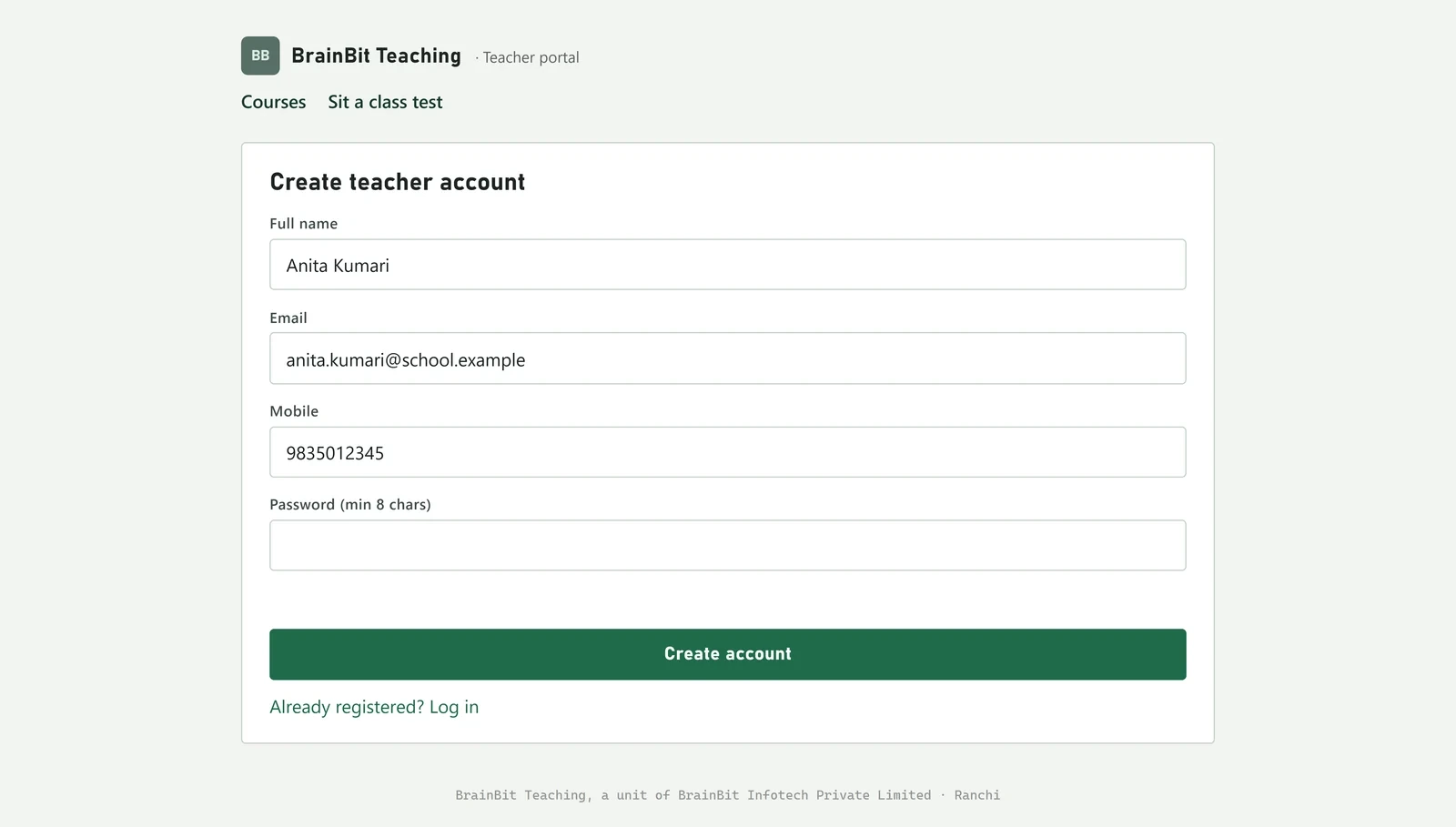
Go to brainbit-teaching.com/tests/teacher.html — or click For teachers anywhere on the site. You will land on the login box. Under it, click New teacher? Create an account.
Fill in your name, your email, your 10-digit mobile number, your institute, school or company name, your city, and a password of at least eight characters (twice, to confirm it). Then press Create account.
Log in
Put in the same email and password and press Log in →. You arrive at your dashboard, with its menu down the left side.
| Menu item | What it is for |
|---|---|
| Home | Your plan, your AI credit, this month’s numbers and quick buttons to make something new. |
| Tests | Every test you have made, with its link, its marks and its on/off switch. + New test at the top makes a new one — this is where the next part starts. |
| Test from PDF | The same new-test form, already set to make the questions from a PDF you have (step 6). |
| Courses, Learning slides, Presentations | Slides, not tests — see the slides guide. |
| Results | Opens the marks for whichever test you last chose from Tests. |
| Library | Tests other teachers have shared. You can take a copy of any of them. |
| Plan & payments, AI credit | Your plan, paying for a plan or adding AI credit, and what each AI run has cost. |
| Branding | Premium Plus: your institute name and logo, shown to your students on the test pages. |
| Profile | Change your name, mobile, institute or city, change your password, or delete the account. Your email cannot be changed — it is your login. |
| Log out | At the bottom of the menu, and also at the top right of every screen. |
Building the test
Open Tests in the left menu and press + New test. One form appears. Fill it in and the questions come from one of three places:
- The shared library — when other teachers have already made enough questions on your topic (step 4).
- An AI — a free one you copy and paste into, or, on Premium Plus, one button that does it for you (step 5).
- A PDF you have — a question paper to copy questions from, or notes to make questions out of (step 6).
Describe the test you want
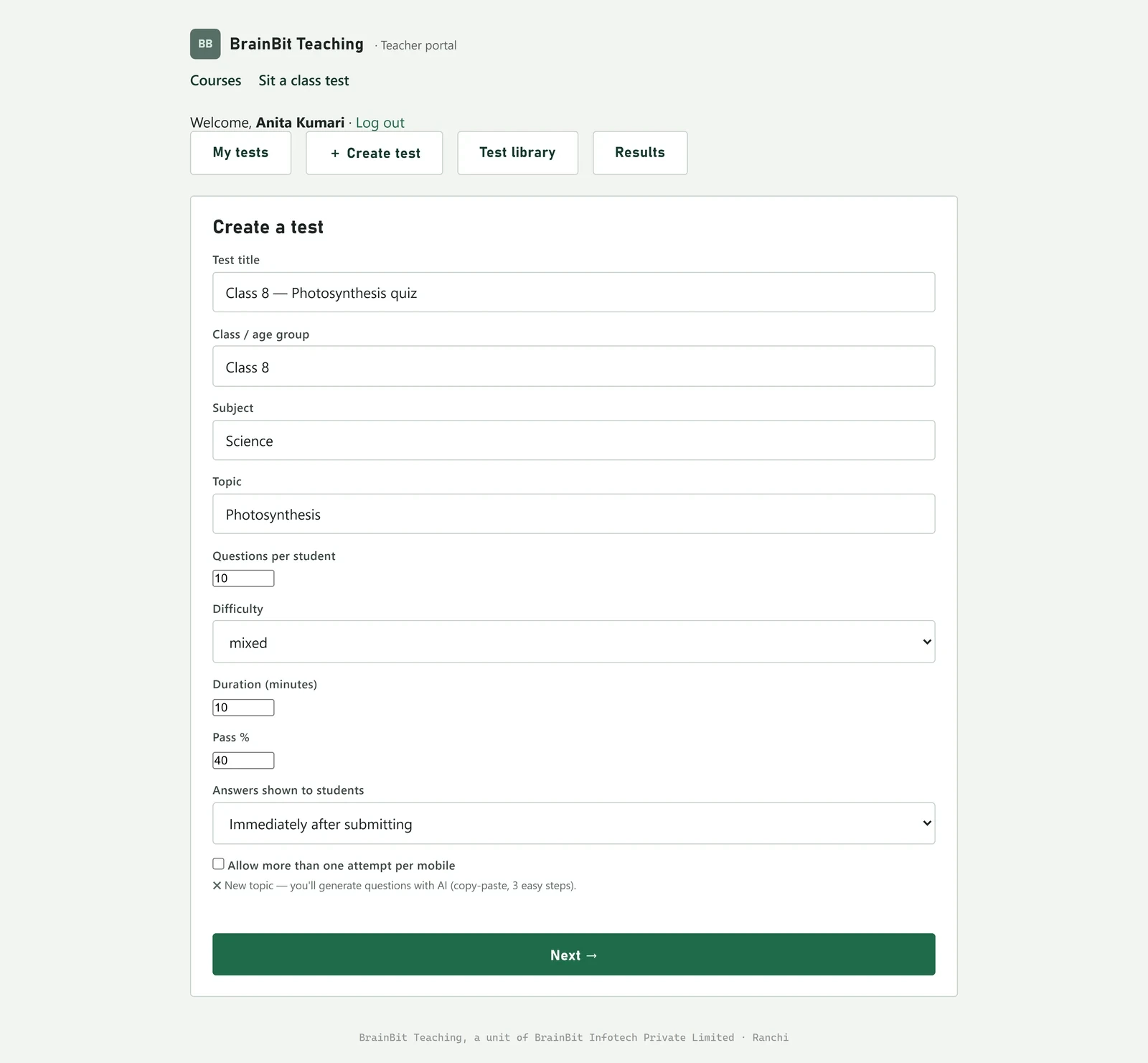
Only three boxes are compulsory: Test title, Subject and Topic. Everything else already has a sensible value you can leave alone the first time.
| Box | What to put in it |
|---|---|
| Test title | What you want your class and yourself to see. “Class 8 — Photosynthesis quiz”. |
| Class / age group | “Class 8”. Used to pick questions at the right level, and to keep your own list tidy. |
| Subject | Anything: Science, Maths, History, Accountancy, Python. As you type, subjects that already exist are offered. |
| Topic | The chapter or the lesson. “Photosynthesis”, “Quadratic equations”, “The Mughal Empire”. |
| Questions per student | How many questions each child answers. 10 to 20 is a normal class test. |
| Difficulty | Leave it on mixed unless you want a specifically easy or hard paper. |
| Duration (minutes) | The clock each student gets. About one minute per question is comfortable. |
| Pass % | The mark at which a student is shown PASS instead of FAIL. |
| Answers shown to students | Immediately after submitting lets each child see the correct answers as soon as they finish. Choose Only after I close the test when the class is sitting it in batches and you do not want the answers travelling around. |
| Allow more than one attempt per mobile | Leave this unticked for a real test: one mobile number, one attempt. Tick it for practice. |
| Questions come from | Question library, or AI (copy-paste) lets the site choose between the library and an AI for you. A PDF I have (question paper or notes) takes you to step 6. The Test from PDF menu item opens this form with the PDF choice already made. |
If you left Questions come from on the library-or-AI choice, a small line appears above the green button as soon as the Subject and Topic boxes both have something in them. It is worth reading, because it tells you which of the next two steps you are about to get:
Then press Next →.
If the questions already exist: check them and create
This is what step 3 looks like when the library can already cover you. The line above the button has turned into a green tick and a count.

After Next → you get the questions the site picked for you, with the correct answer in bold. Read them the way you would read a photocopied worksheet before handing it out. Anything you do not like, press ✖ Remove beside it — it disappears from your paper and nobody else's.
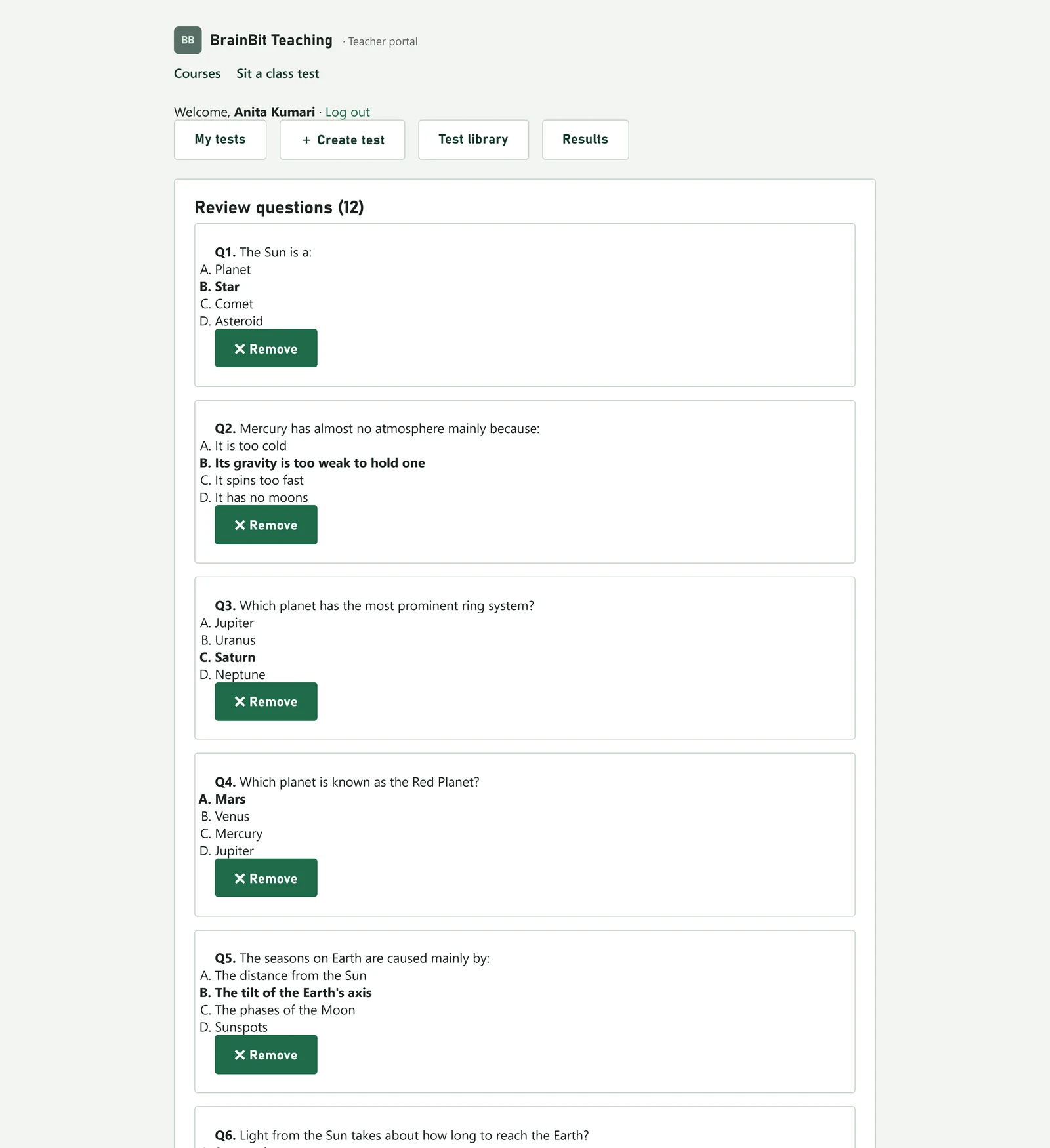
When you are happy, press Create test and go to step 8.
If the topic is new: get the questions from an AI
This is the part that sounds hard and is not. The screen is headed Step 2 — Generate with AI, and there are two ways through it.
On Premium Plus: press the ✨ Generate button at the top — our own AI, paid from your AI credit. The line under the button tells you roughly what it will take from your AI credit. It says Writing… for up to a minute, then fills in the questions for you and shows what it actually charged — go straight to step 7. If it fails, nothing is charged. On Free and Premium that space just says the button is part of Premium Plus; use the free way below.
The free way, on every plan: the site writes the instructions for you; you only carry them across to a free AI website and bring the answer back.
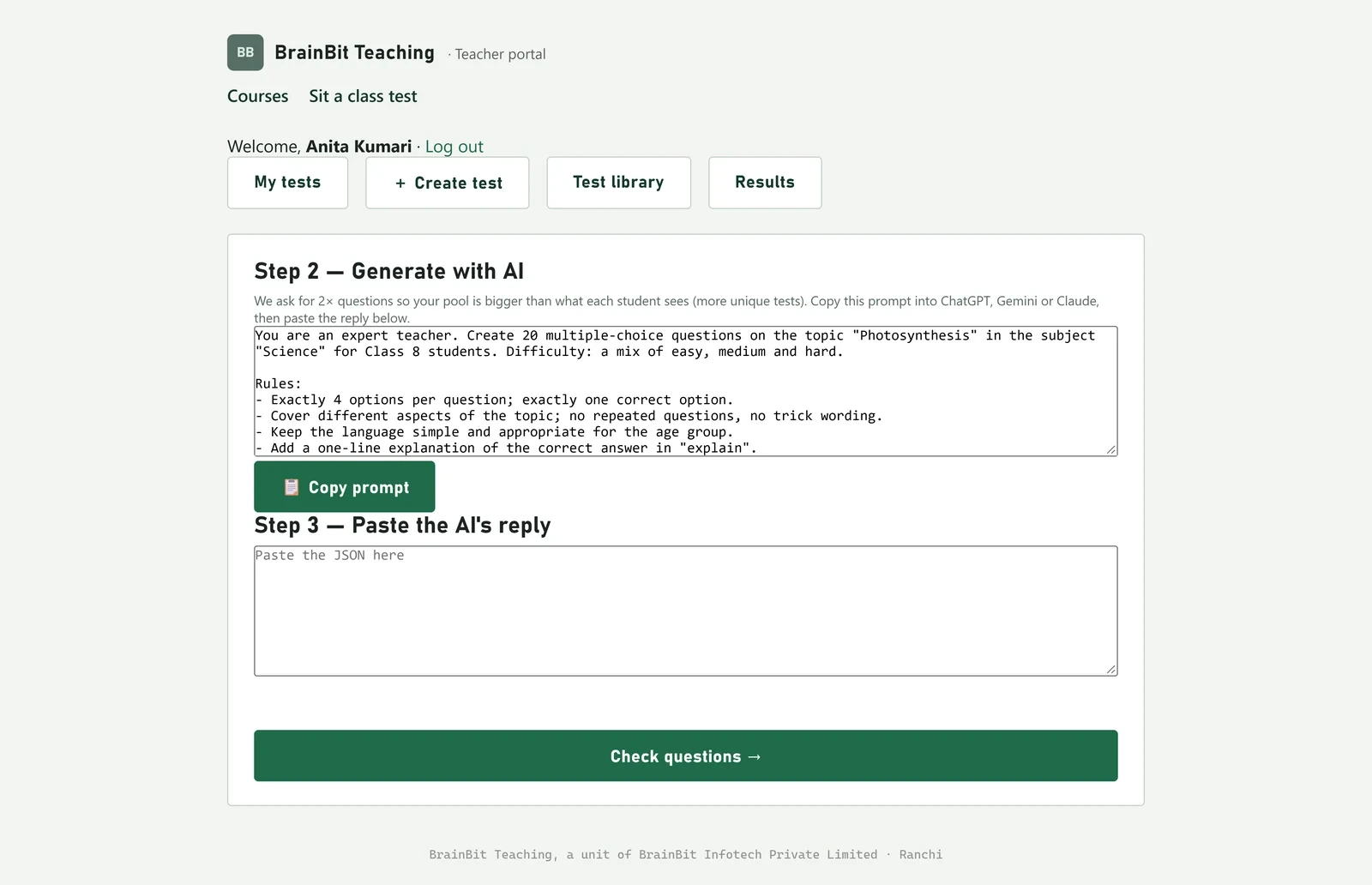
- Press 📋 Copy prompt. The button changes to ✔ Copied.
- Open chatgpt.com, gemini.google.com or claude.ai in another tab. Paste into the message box — Ctrl + V on a computer, or press and hold and tap Paste on a phone — and send it.
- When the AI replies, select its whole answer, copy it, come back here and paste it into the big box under Step 3 — Paste the AI's reply.
- Press Check questions →.
If you have a PDF: make the test from it
Choose A PDF I have (question paper or notes) under Questions come from in step 3 — or open Test from PDF in the left menu — and press Next →. The screen is headed Step 2 — Make the test from a PDF. First say what is in the PDF:
| Choice | Use it when |
|---|---|
| It has MCQs — use exactly these questions | You have a question paper and want its questions, as they are, in an online test. |
| It has MCQs — write new questions in the same format | You like the paper’s style but want fresh questions, so students cannot look the answers up. |
| It’s notes — make questions from them | You have chapter notes or a handout and want questions that test them. |
For the two choices that write new questions you also pick their difficulty and how many to make (Questions to generate, up to 100). Then get the questions in one of two ways:
- Upload and let AI read it (Premium Plus, with AI credit) — choose the PDF, up to 20 pages and 10 MB, and press Read my PDF. A small estimate is held from your credit while it reads and whatever is not used is given back; if it fails, nothing is charged. It usually takes under a minute. You can leave the page — the finished import waits under Recent PDF imports on this screen for 7 days.
- Or use your own AI (free) — on every plan. Press 📋 Copy the prompt, open ChatGPT or Gemini, attach your PDF, paste the prompt and send. Copy the whole reply, paste it into the box and press Check questions →.
Read the questions before you keep them
Whichever way they came — AI or PDF — the questions appear under Review, with a line counting what was found and a keep tick-box on each one. Untick anything that is wrong, badly worded, or not what you taught. Anything the site could not read properly is greyed out and marked will be skipped (invalid) — you do not have to do anything about those.
Things you may see on this screen:
| What you see | What it means |
|---|---|
| Four or five options | A question can have A–D, or A–E when the paper has five. Line breaks in the question and options are kept, so poems, code and step-by-step sums look the way they were written. |
| p. 3 | From a PDF: the page the question came from, so you can check it against the paper. |
| AI-answered — please check | The paper had no answer key for this one, so the AI chose the answer. Check it yourself. |
| Adjusted options | The AI had to fix or complete the options it found. Read them. |
| Needs diagram | The question depends on a picture the test cannot show. It is unticked for you. |
| A box with a passage or table | A question set: one passage, table or data block with its own questions under it, like a comprehension or a data-interpretation set. keep this set keeps or drops the whole set at once. |
| ⚠ a red warning at the top | From a PDF: the AI stopped before the end of the paper. Compare the count with your paper; run it again, or add the missing pages later from Manage. |
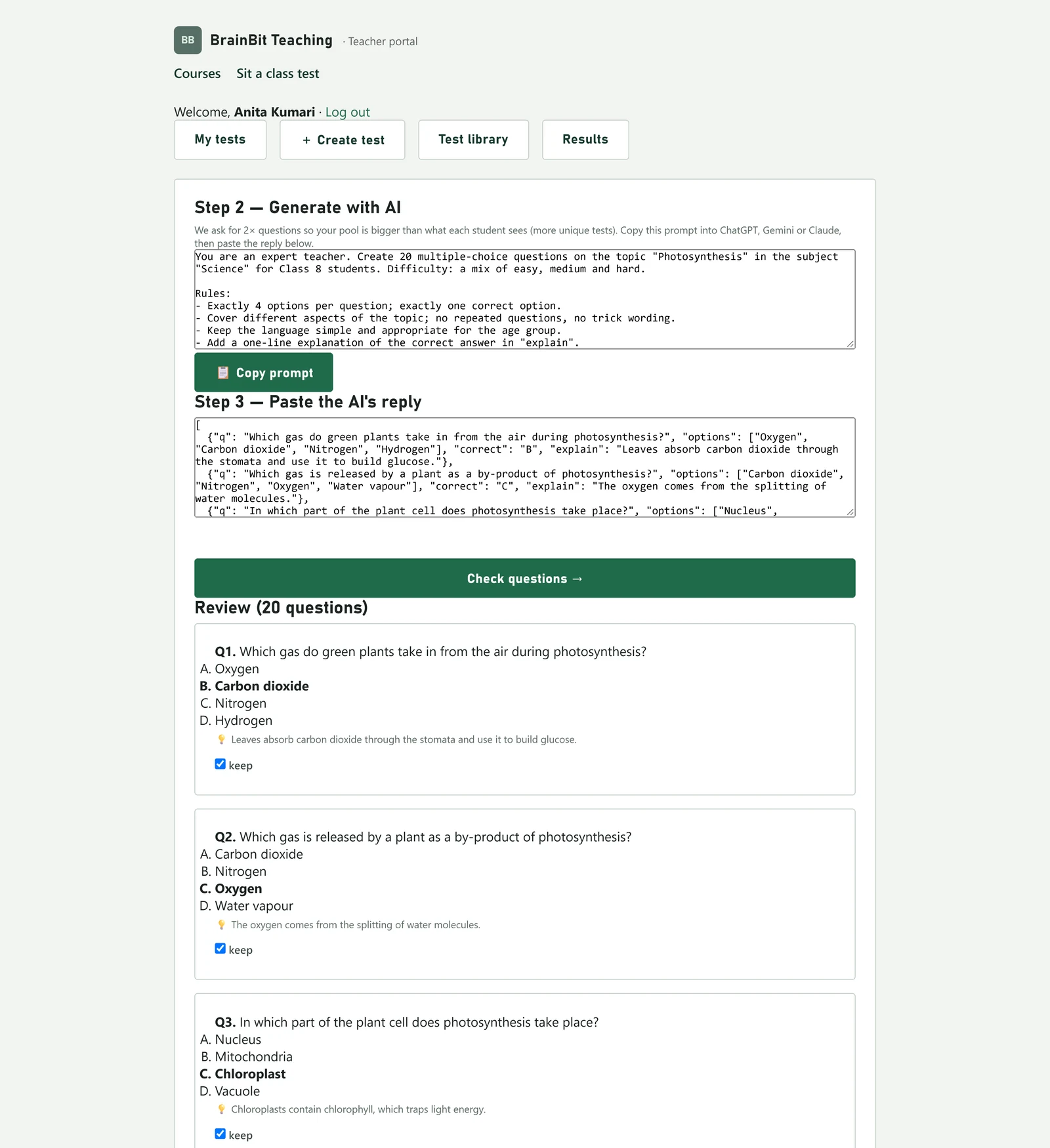
Press Create test.
Sharing it with the class
Take the link
Your test now exists and the site shows you its link, a QR code and a WhatsApp button. The link looks like brainbit-teaching.com/tests/t/oy7y68 — those last six characters are this test's own code.
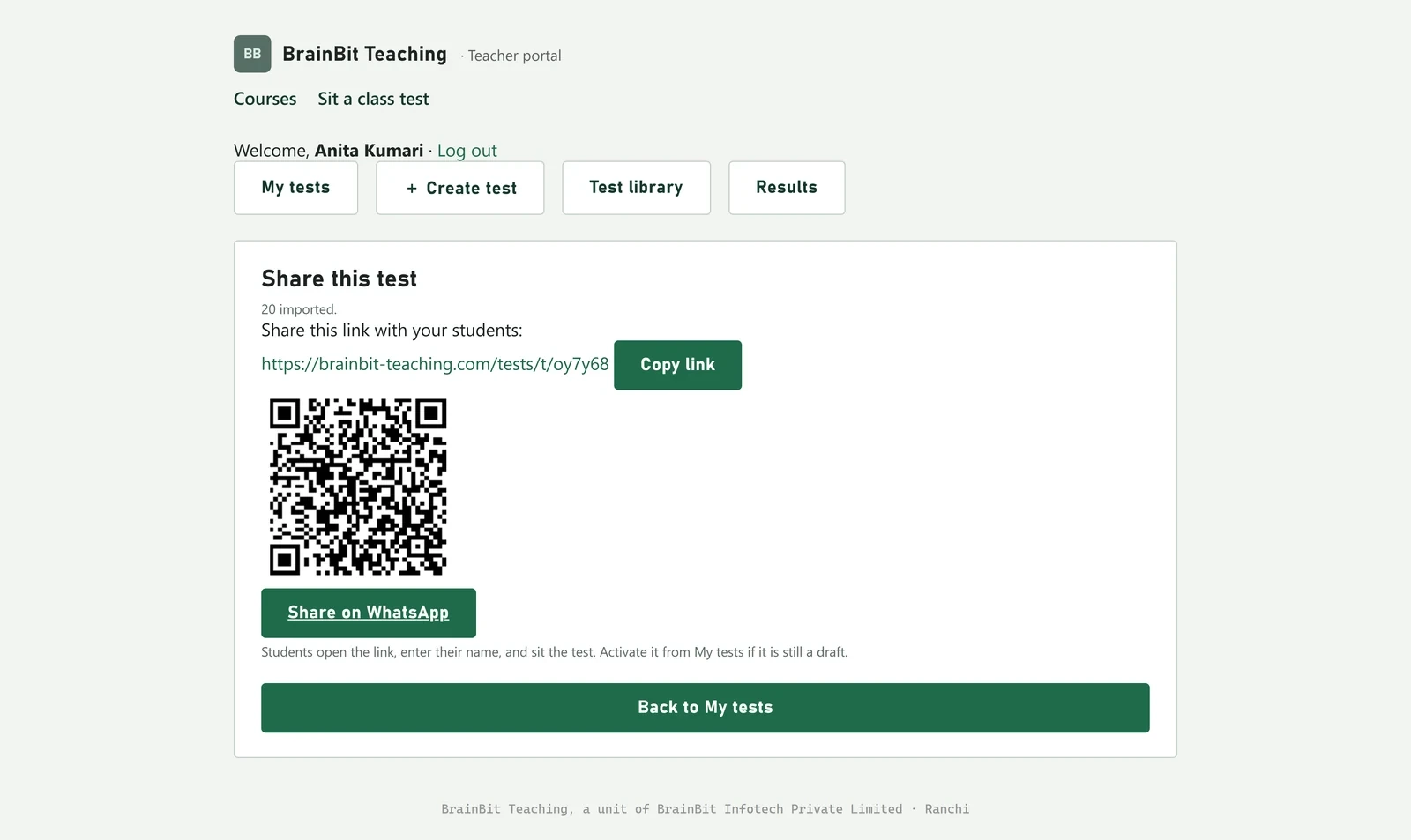
- Copy link — then paste it into your class WhatsApp group, Google Classroom, or an email.
- The QR code — put it on the projector and let the class scan it with their phone cameras. Nothing to type.
- Share on WhatsApp — opens WhatsApp with the message already written.
Switch the test on
Go to Tests. Find your test and look at the end of its grey line: it says status draft. A draft is not open — a student who opens the link right now is told “This test is not open yet.”
Press Activate. The status becomes active and the class can start.
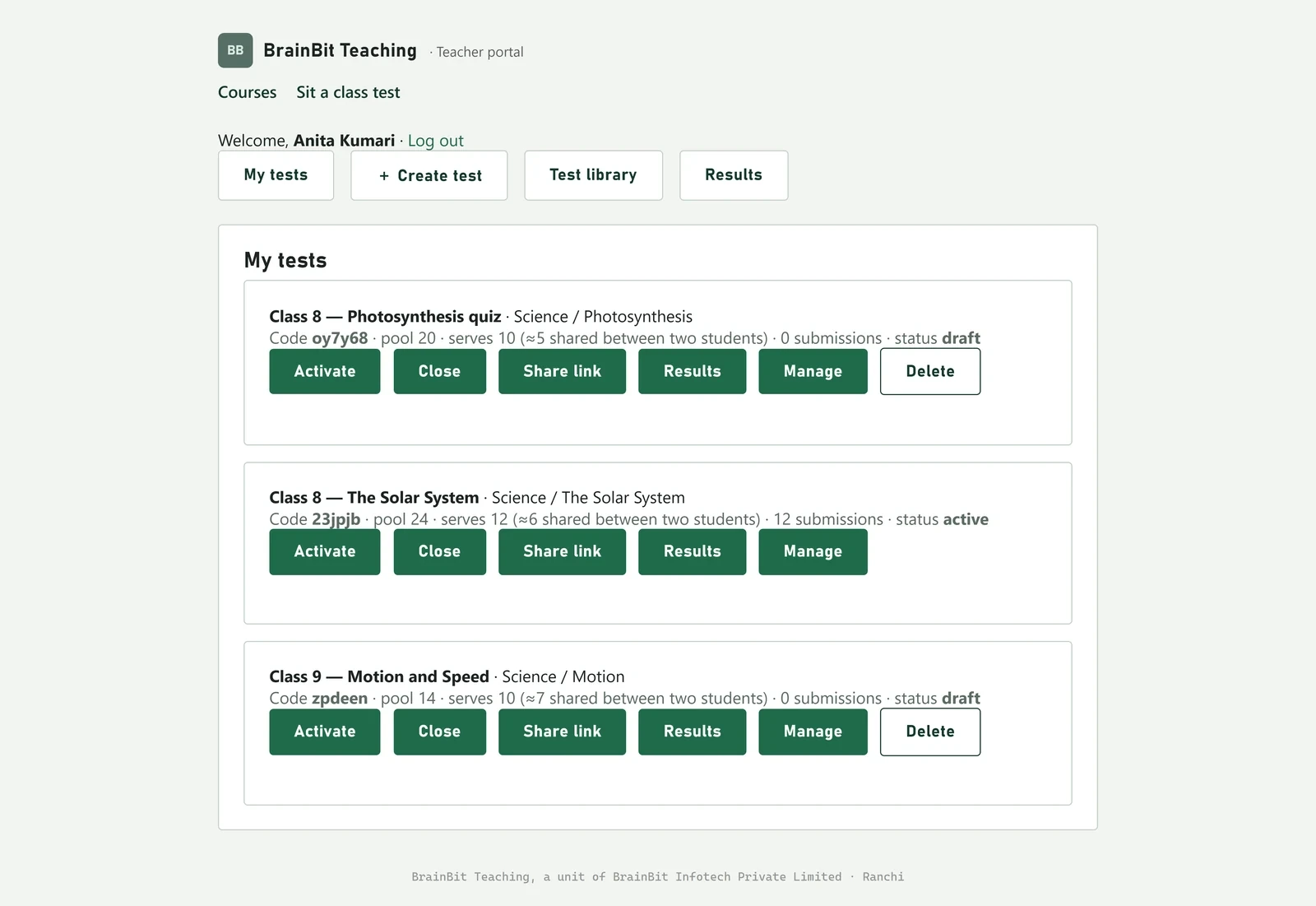
| What the grey line means | |
|---|---|
| Code | The six characters at the end of the share link. |
| pool | How many questions the test has in total. |
| serves | How many of them each student actually gets, drawn at random. A test with question sets says serves all … (has question sets): everyone gets every question. |
| ≈ shared between two students | Roughly how many questions any two children will have in common. A bigger pool makes this smaller. |
| submissions | How many students have finished and sent their paper in. |
| status | draft = nobody can start. active = open now. closed = finished, no new attempts. |
What your students see
Worth knowing so you can answer from the front of the room. They never sign up, never set a password, and never install anything.
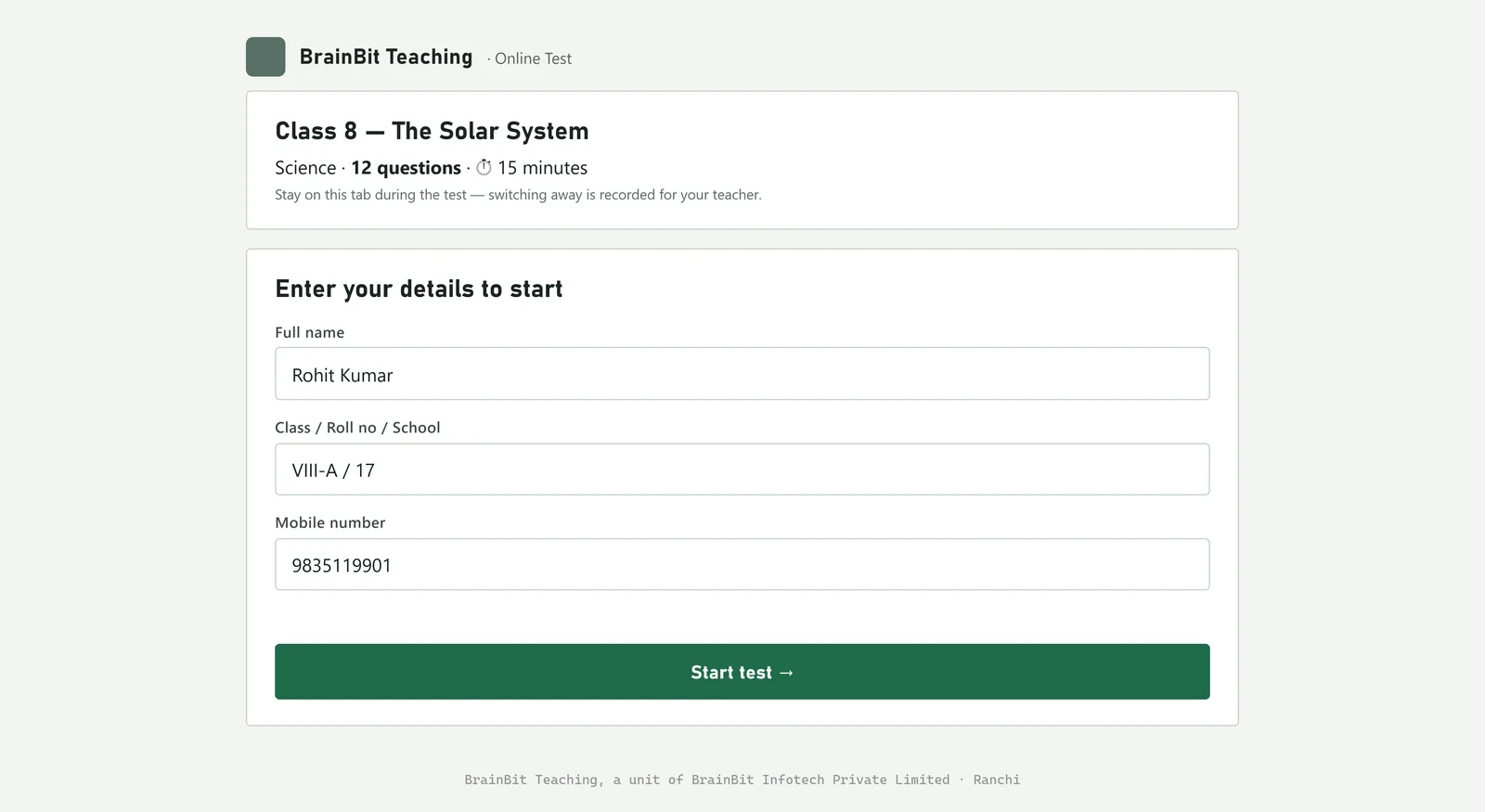
They open the link and type three things
The page shows the test title, how many questions and how many minutes, and asks for a name, a class or roll number, and a 10-digit mobile number. The mobile number is what stops one student sitting the test twice.
They sit the test
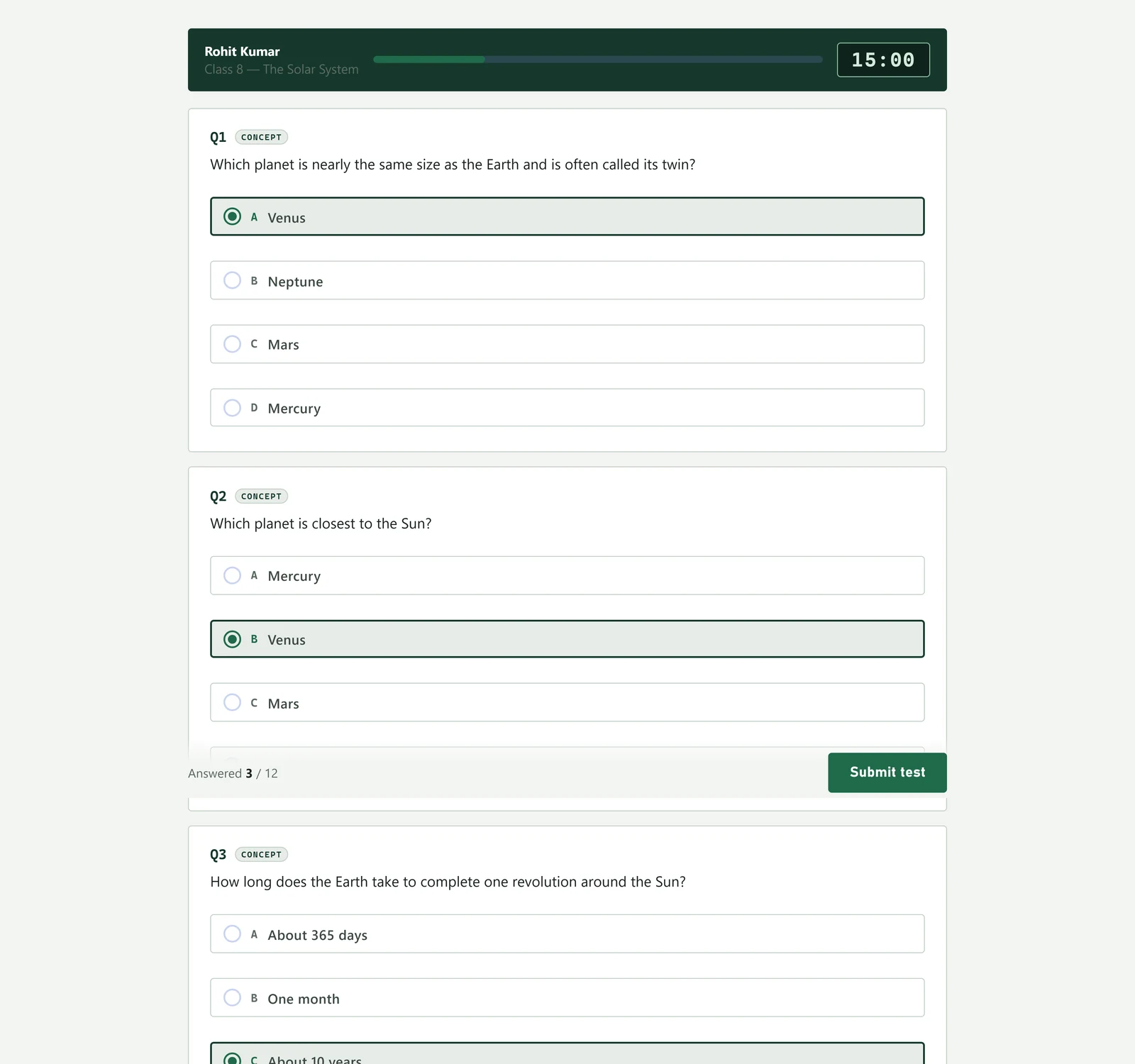
A clock counts down at the top, a bar fills as they answer, and the foot of the screen keeps saying how many are done. When the clock runs out the paper is sent in automatically, so nobody loses their work.
- Options such as None of these, All of the above or Cannot be determined stay where the paper put them (usually last), and a question with options like “Both A and B” is not shuffled at all, so it still makes sense.
- A question set shows its passage or table once, with its questions boxed underneath. Set tests keep the paper’s order; only the questions inside a set change places.
Pressing Submit test asks them to confirm, and warns them if they have left questions blank.
They get their mark at once
Score, percentage and PASS or FAIL, straight away. If you chose Immediately after submitting, they can also download an answer sheet with every question, what they chose, the right answer and why.

If you chose Only after I close the test, they are told the answers come later — and they appear for everyone the moment you press Close.
Reading the results
Open the marks
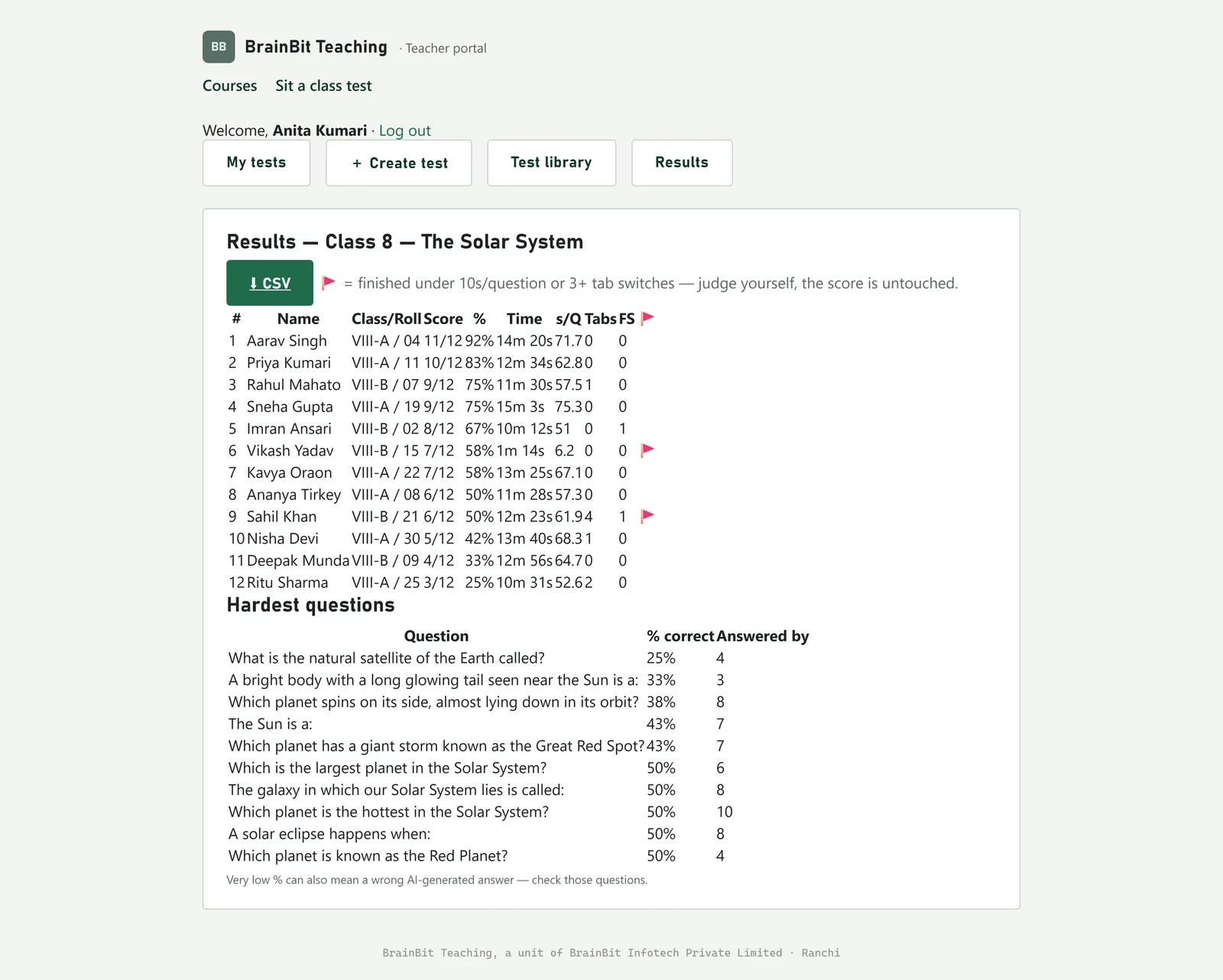
In Tests, press Results on the test. The class appears ranked from best to worst, and it updates as more students finish — you can watch it fill during the lesson.
| Column | What it tells you |
|---|---|
| Score / % | Marks out of the questions that student was served. |
| Time | How long they actually took, measured on the server, not on their phone. |
| s/Q | Seconds per question. A whole-class average far below yours usually means the paper was too easy. |
| Tabs | How many times they left the test for another tab or app. |
| FS | How many times they left full screen. |
| 🚩 | A flag: finished faster than 10 seconds a question, or switched away 3 or more times. |
| Sheet | 📄 PDF opens that student’s answer sheet — the same one they got after submitting. Choose “Save as PDF” in the print box to keep it, or send it to a parent. |
Below the class list is Hardest questions: the questions fewest students got right. Read it twice — once to see what to reteach, and once to check that a question with a very low score is not simply carrying a wrong answer key.
Press ⬇ CSV to download the whole table. It opens in Excel or Google Sheets, ready for your mark register.
Close the test when the class is done
Press Close in Tests. No new student can start, latecomers are told the test is closed, and if you withheld the answers they are released now. Your marks stay exactly where they are.
Using a test again
Change a test without rebuilding it
Manage holds everything you might want to adjust later.

- How students sit it — change the number of questions or the minutes, then Save sitting settings. In a test with question sets the number is fixed, because every student gets every question.
- Add more questions to the pool — paste another batch of AI questions, then press Add to pool. Ask the AI for “20 more, different from before”. A bigger pool means more unique papers next year. If the batch contains a question set, the whole test switches to giving every student every question.
- Schedule — a date and time for the test to open by itself.
- Sharing — one button. Shared puts the test in the library for other teachers; Private keeps it to yourself. Your students' marks are never shared either way.
Take a copy of someone else's test
Open Library and search by subject, topic or class. Press Use this test and you get your own copy — your own link, your own marks. The original teacher's test is untouched and they never see your class.
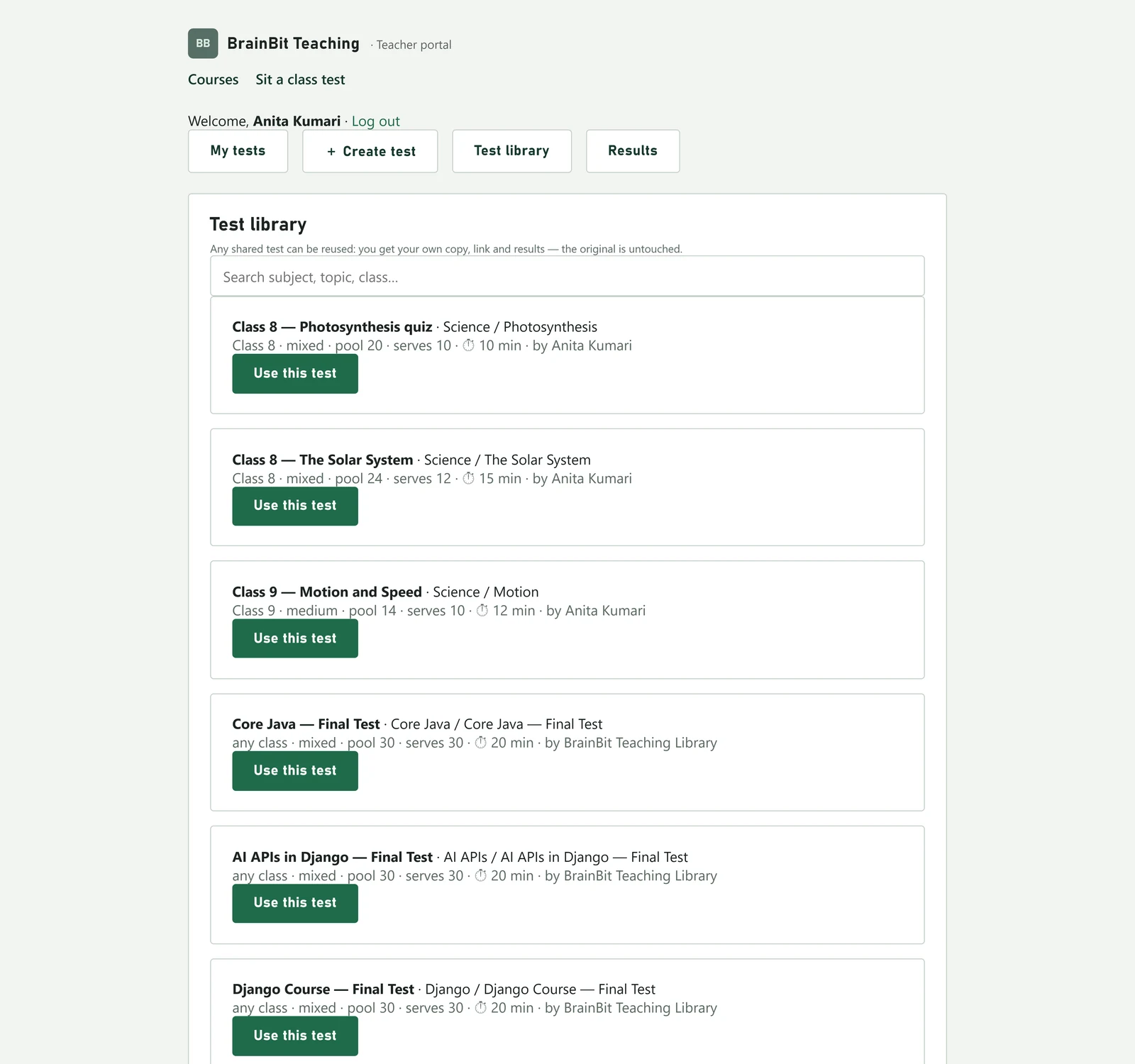
The fastest test you will ever set: find one here, press Use this test, press Activate, send the link. Under a minute.
A handout you can print for the class
Fill in the two blanks, print it, and stick it on the board — or just read the five rules out. Printing this page gives you two sheets and nothing else: this handout, and the one-page summary at the bottom.
Today's test
Open this link:
Test code:
Before you start
- Type your full name and your class and roll number exactly as your teacher asked.
- Use your own 10-digit mobile number. One number can sit the test once.
- The clock starts when you press Start test. It does not stop.
- Stay on the test. Leaving for another tab or app is recorded and your teacher will see it.
- Press Submit test when you finish. If the time runs out, your paper is sent in for you.
You do not need an account and you do not need to install anything.
When something does not work
My students say “This test is not open yet.”
The test is still a draft. Open Tests, find it, and press Activate. If you set a scheduled opening time, check that the time has actually passed.
My students say “Test not found.”
The link is wrong — usually a character lost when it was copied by hand, or a full stop swept up into the link by a chat app. Go back to Tests, press Share link and send it again with Copy link rather than typing it.
A student says “This mobile number has already taken this test.”
That number has a finished attempt. If it is a genuine second sitting — a retest, or two siblings on one phone — open Manage and allow more than one attempt, or let the student use a different number.
I pasted the AI's answer and it says it could not read it.
The site needs the whole reply, from the first [ or { to the last ] or }. Select all of the AI's message rather than part of it — most AI sites have a copy button under the reply. If the AI answered with a paragraph of chat instead, tell it: “Give me only the JSON, nothing else.”
My PDF has more questions than the review shows.
The AI sometimes stops early on a long paper; when it does, a red ⚠ line at the top of Review says so. Try again, or split the PDF into smaller parts. The page number beside each question shows how far it got.
It says the PDF is too big.
Uploads take up to 20 pages and 10 MB. Split the PDF by chapter and make one import from each part. With Copy the prompt the limit is whatever your own ChatGPT or Gemini accepts.
Some questions are unticked and say “Needs diagram”.
They depend on a figure from the paper that the test cannot show. Leave them out, or tick keep if the question still works without the picture.
I don't see the ✨ Generate button or “Read my PDF”.
They need Premium Plus and some AI credit. If the screen says your credit is used up, add money under Plan & payments. The free copy-and-paste way right beside them works on every plan and costs nothing.
It says I have reached my limit.
Every plan can make a set number of tests a day and in total. Wait until tomorrow, delete a test nobody has sat, or move to a bigger plan under Plan & payments. Taking a copy from the Library counts as making a test too.
It says the pool must be at least the number served per student.
You are asking for more questions per student than the test actually has. Open Manage and either lower Questions per student or paste more questions into the pool.
I made a mistake in a question. Can I fix it?
Questions cannot be edited after the test is made. Add a corrected batch through Manage, or build the test again — while nobody has sat it, Delete removes the old one cleanly.
Half the class finished suspiciously fast.
Look at the s/Q column rather than the flags. If the whole class is quick, the paper was too easy for them — raise the difficulty next time. If one or two are, the flag is there to make you look at those rows.
Can I use this for a whole term's worth of tests?
Yes. Each test is separate, keeps its own link and its own marks, and stays in Tests until you delete it. Download the CSV after each one and your mark register builds itself.
My class does not have enough phones.
Run it in batches on whatever devices you have, and set Answers shown to students to Only after I close the test so the first batch cannot pass the answers to the second.
The whole thing on one page
Setting a test, start to finish
| 1 | Log in at brainbit-teaching.com/tests/teacher.html |
| 2 | Open Tests and press + New test |
| 3 | Fill in title, class, subject, topic, how many questions, how many minutes, and where the questions come from |
| 4 | Library questions, an AI (copy-paste, or the ✨ Generate button on Premium Plus), or your own PDF |
| 5 | Check the questions. Remove or untick anything wrong; check the AI-answered ones |
| 6 | Press Create test |
| 7 | Copy the link, or show the QR code |
| 8 | Press Activate in Tests — the test does not open on its own |
| 9 | Send the link. Students type name, class and mobile, and start |
| 10 | Watch Results fill up. Download the CSV |
| 11 | Press Close when the class is finished |