 BrainBit Infotech Teaching
Before you start
Slides live in the same teacher portal as your tests, with the same login. If you do not have an account yet, follow the first two steps of the test guide and come back.
Open Learning slides
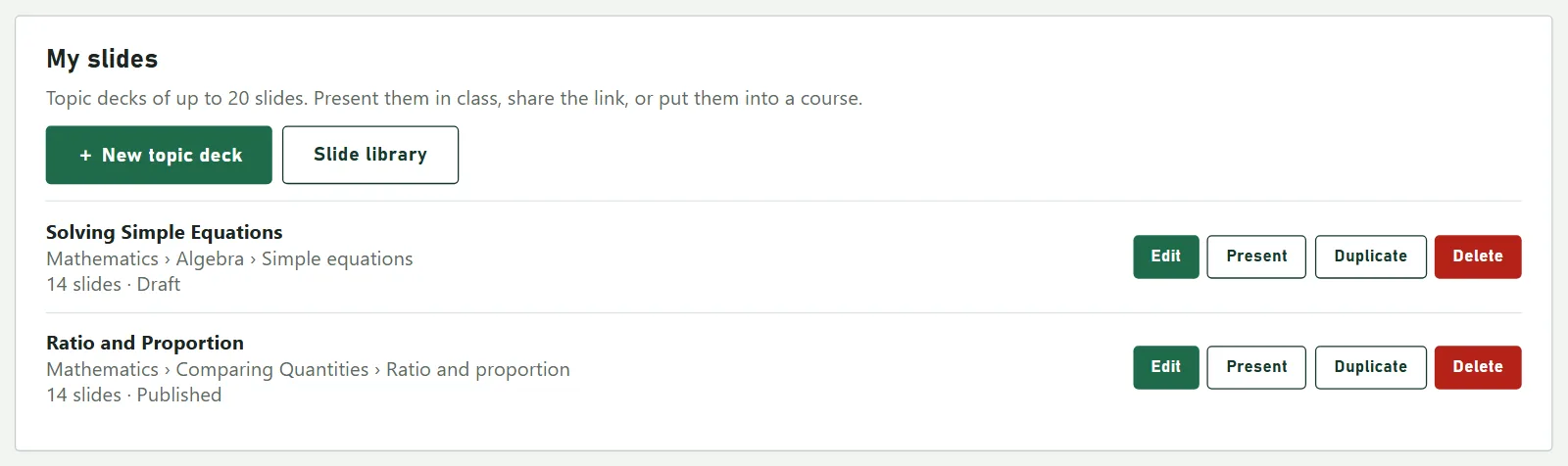
Log in at brainbit-teaching.com/tests/teacher.html and press Learning slides in the menu on the left (behind ☰ on a phone). You see every deck you have made, newest first, with its subject, chapter and topic, and whether it is a Draft or Published.
Making a topic deck
Three short steps: tell the site what the lesson is about, let an AI app write the slides, and paste its answer back. The site checks every slide before it keeps anything.
Describe the topic
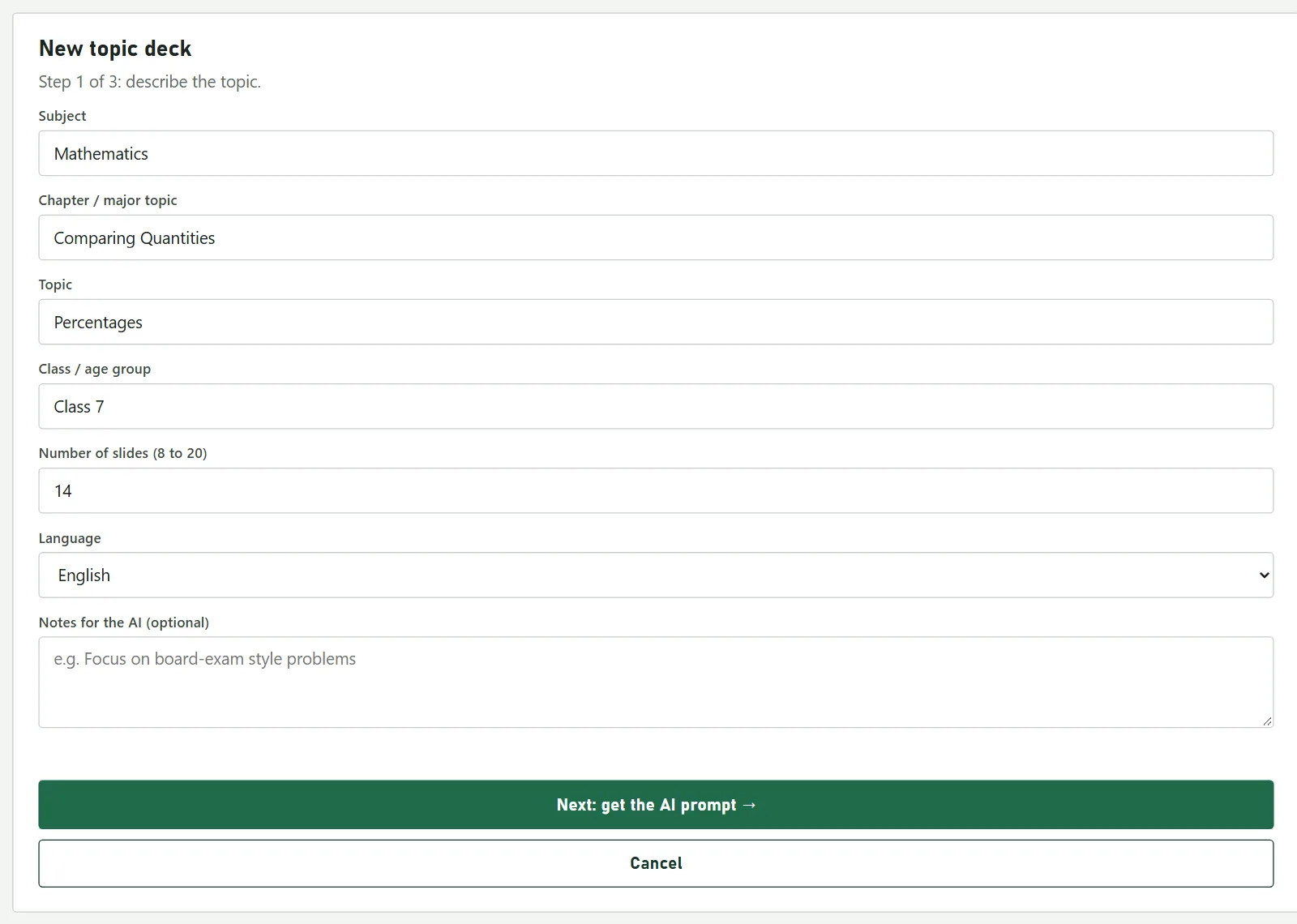
Press + New topic deck and fill in:
| Field | What to put |
|---|---|
| Subject | The subject, e.g. Mathematics. Pick a suggestion if one fits, so your decks group together. |
| Chapter / major topic | The chapter from your book, e.g. Comparing Quantities. |
| Topic or title | This lesson, e.g. Percentages. |
| Class / age group | Who it is for, e.g. Class 7. The AI pitches the language to it. |
| Number of slides | 8 to 20. Twelve to fourteen fits one class period. |
| Language | English, Hindi or Hinglish. |
| Notes for the AI | Optional: anything to stress, e.g. use shopping examples. |
Then press Next: get the AI prompt →.
Let an AI write the slides
On Premium Plus: press the ✨ Generate button at the top of step 2 — our own AI, paid from your AI credit. The line under it shows roughly what it will cost. It says Writing… for up to a minute, then pastes the slides in and checks them for you, and shows what it actually charged; go straight to step 4. If it fails, nothing is charged. On Free and Premium that space just says the button is part of Premium Plus.
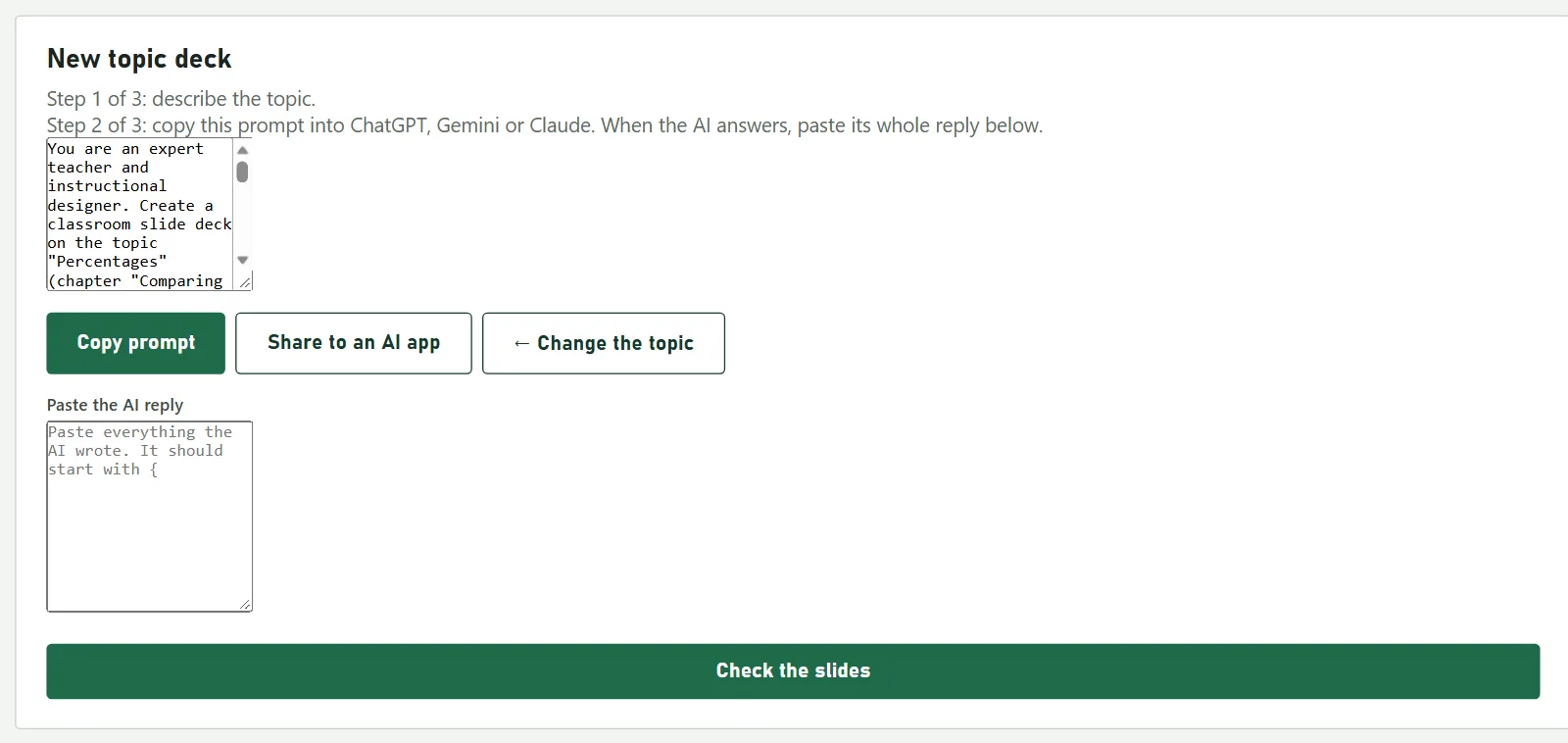
The free way, on every plan: the site writes the instructions for the AI for you. Press Copy prompt (on a phone, Share to an AI app), open ChatGPT, Gemini or Claude, paste it and send. Wait for the AI to finish, then copy its whole reply — most apps have a copy button under the answer.
Paste the reply and check it
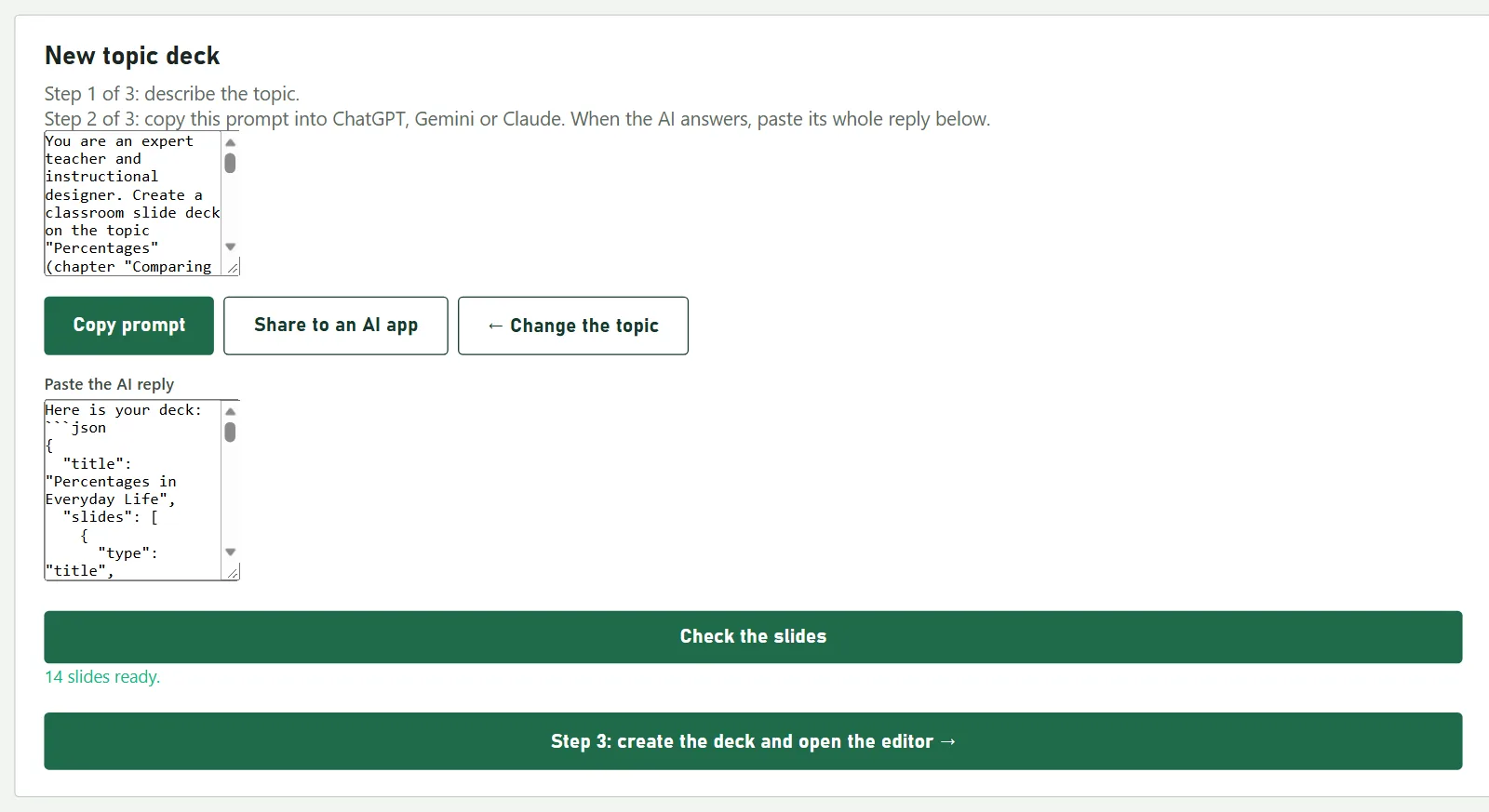
Paste into Paste the AI reply and press Check the slides. You get one of three answers:
- “14 slides ready.” All good. Go on.
- A list under “Left out:” those slides were broken and will be dropped; the rest are fine. You can add a replacement slide later in the editor, or ask the AI again.
- “No usable slides were found.” Usually only half the reply was copied. Copy it again, all of it.
Then press Step 3: create the deck and open the editor →.
Read it and fix what you want
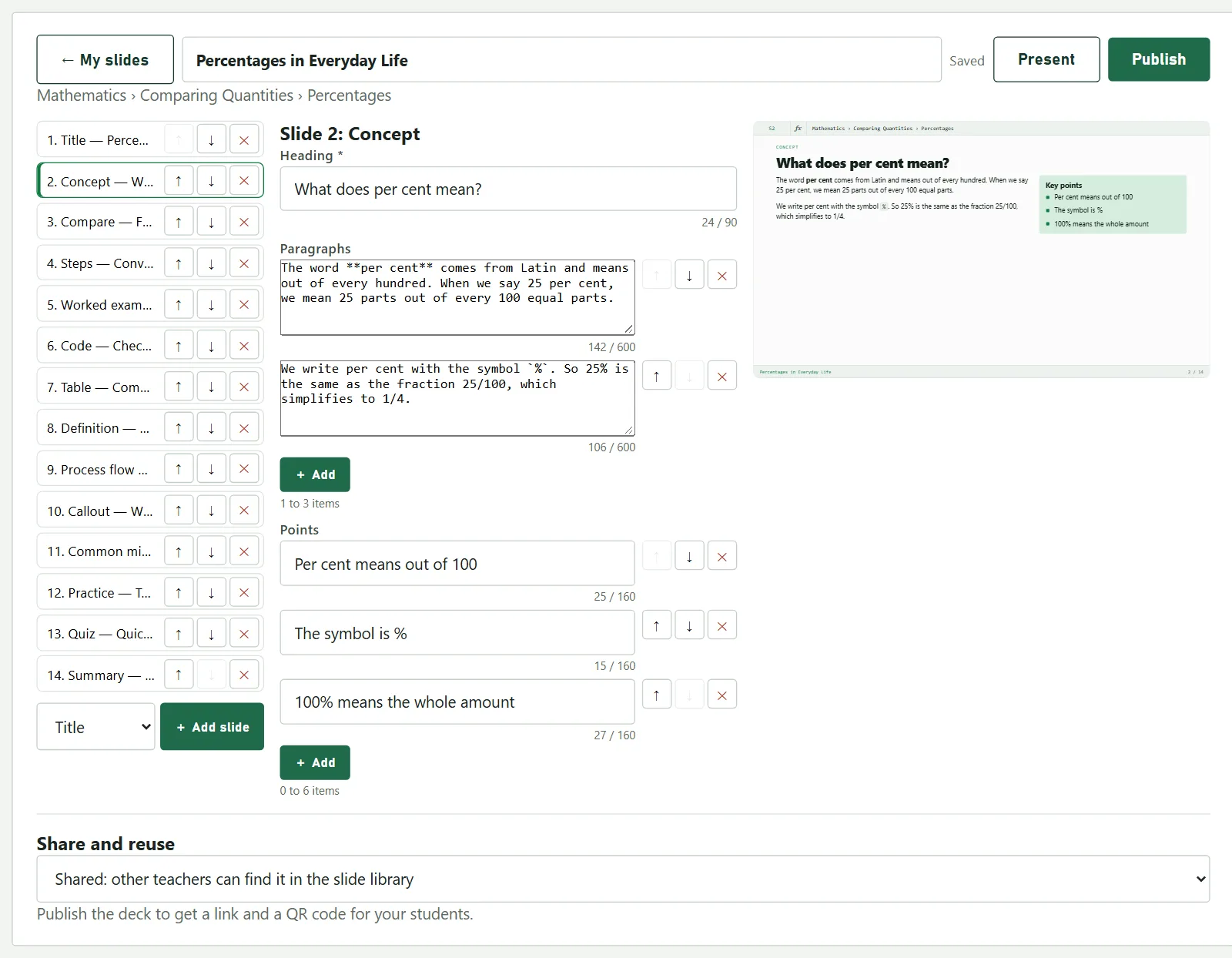
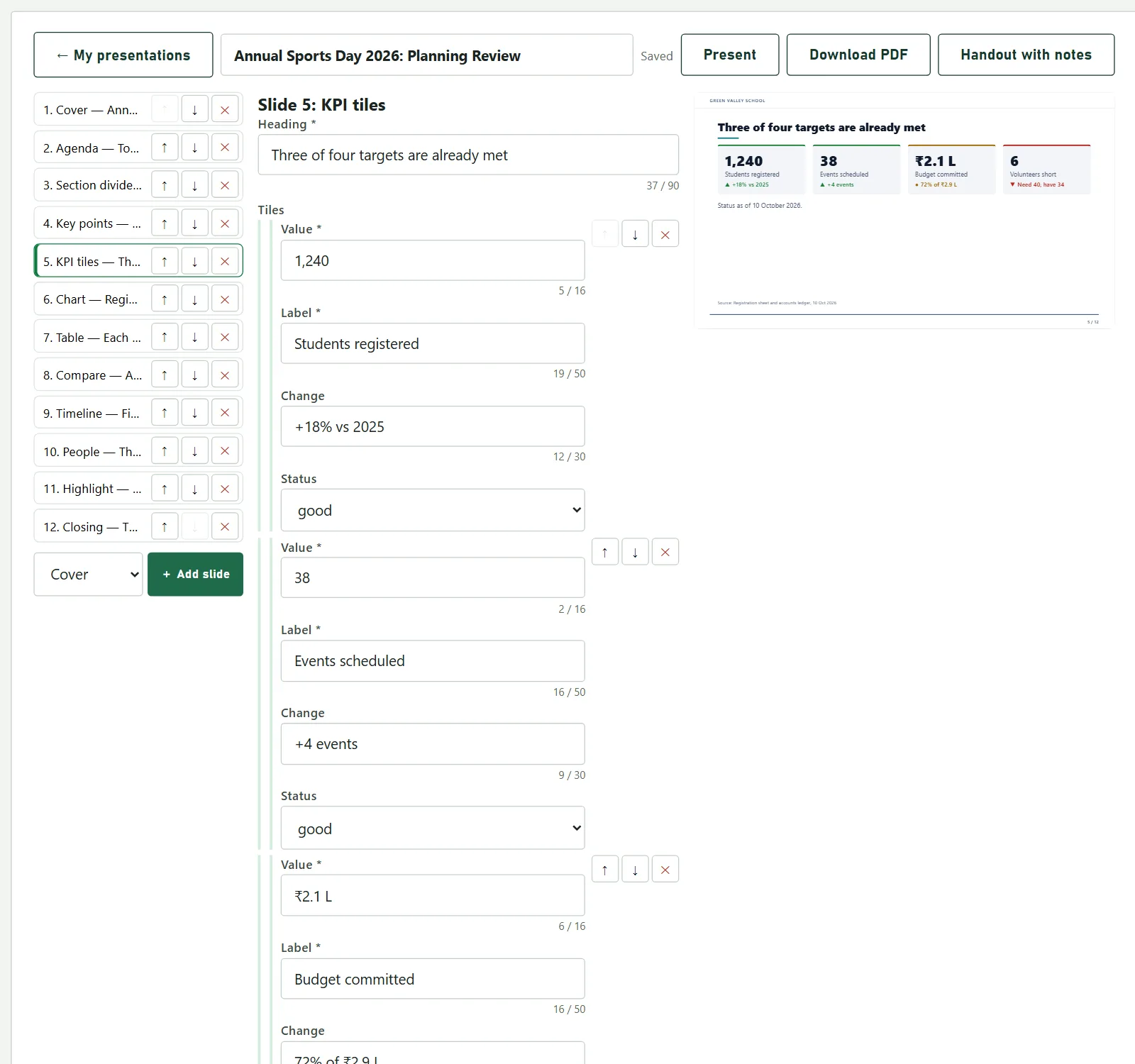
The editor shows the slide list on the left, the chosen slide's text in the middle, and a live preview on the right. Read every slide once — the AI writes well but it is your lesson.
- Click a slide in the list to edit it. Changes save by themselves (watch for Saved at the top).
- Use ↑ ↓ to change the order and × to delete a slide.
- Pick a slide type under the list and press + Add slide to add one: a worked example, a quiz, a table, a definition and more.
- The counter under each box (e.g. 24 / 90) turns red when the text is too long for the slide.
- Press Present any time to see it full screen.
Publishing it and using it in class
A deck stays private to you until you publish it. Publishing gives it a link and a QR code that work on any phone or projector.
Publish and share the link
Press Publish at the top of the editor. If a slide still has a problem (an empty field, text too long, a quiz with no correct answer chosen), the site lists it instead; click the problem to jump to that slide, fix it and publish again.
Once published, Share and reuse shows the link and a QR code. Copy link and send it on WhatsApp, or put the QR code on the projector for the class to scan.
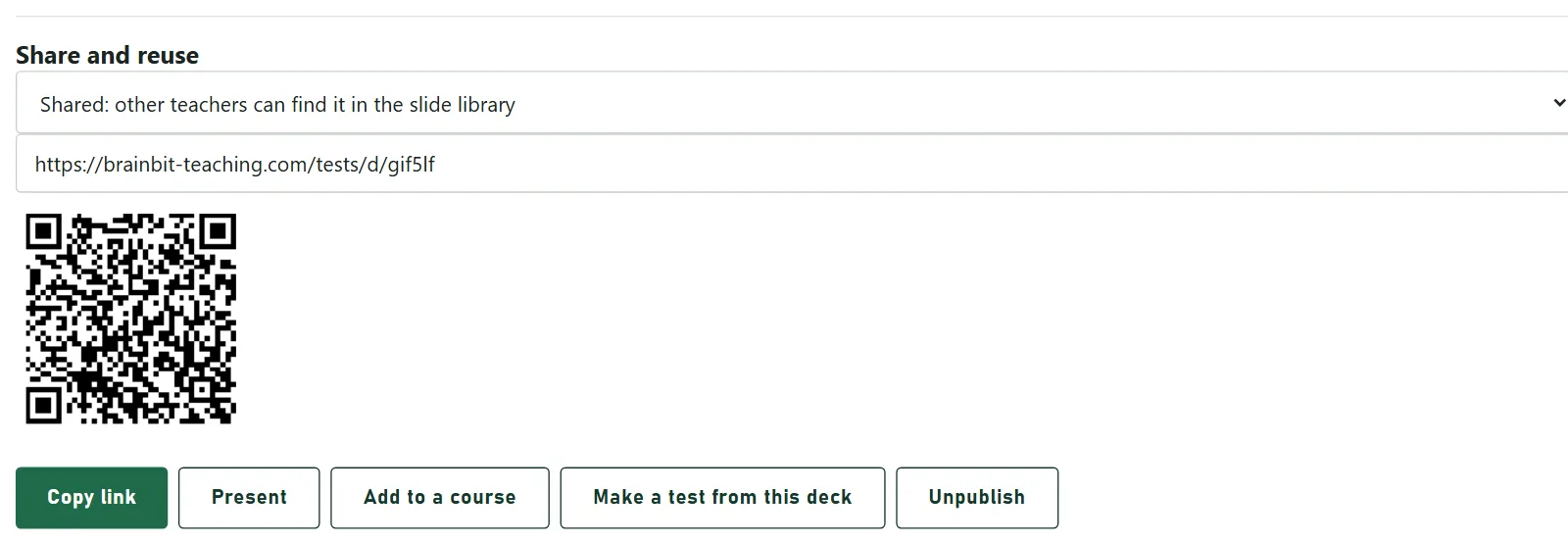
Who can find this deck: Shared puts it in the slide library so other teachers can copy it; Private keeps it out of the library. Either way, anyone with the link can view it.
Teach from it
In class, press Present. The slides fill the screen. Move with the arrow keys, the space bar, or a tap on the right or left of the slide on a phone or tablet. On a smart board, open the deck's link instead — no login needed.
What your students see
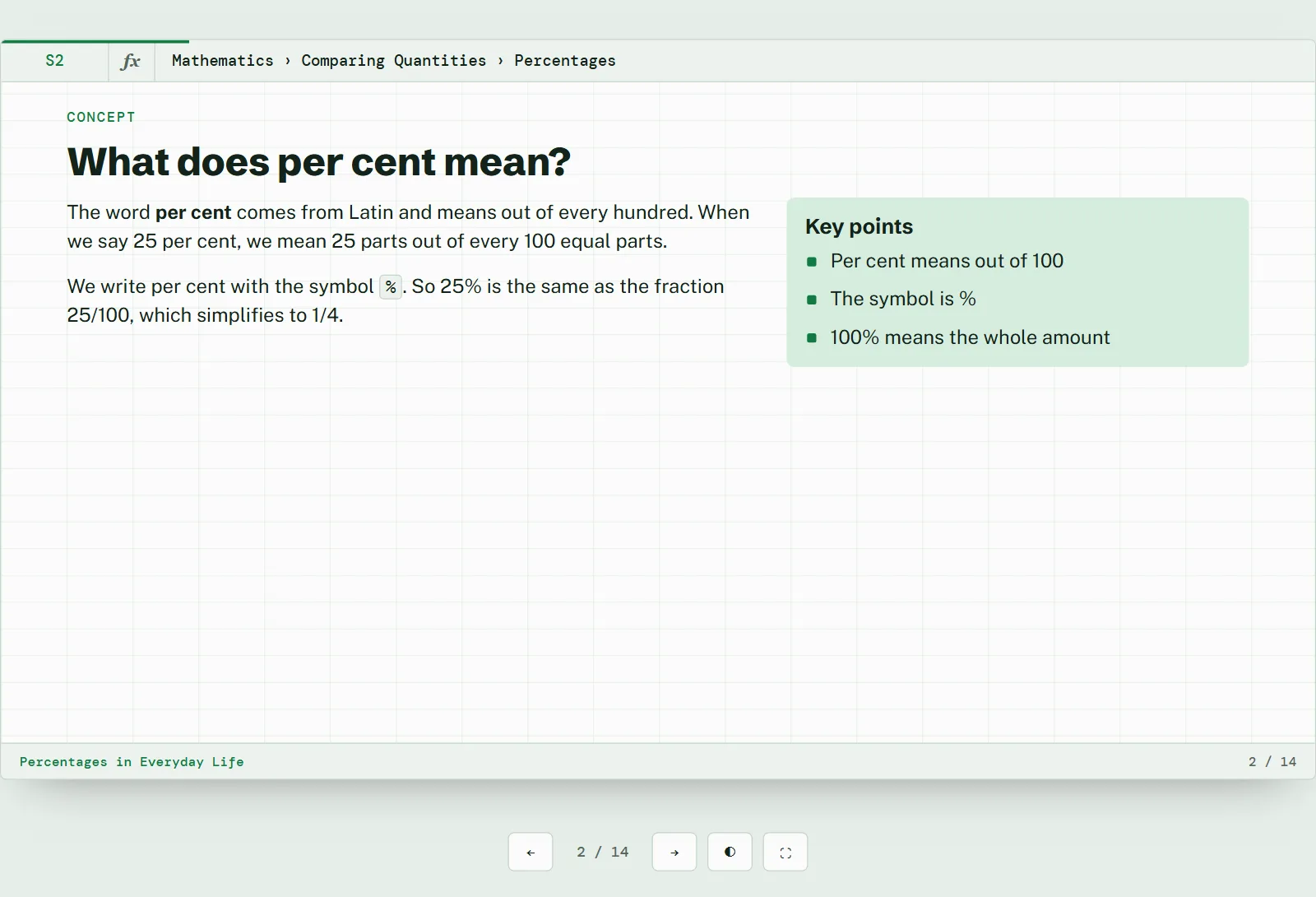
Students open the link on any phone or computer. No account, no app, no login: the slides open at once, and they can go back over the lesson at home.
One slide at a time, on any screen
They move with the arrows under the slide or by swiping. On quiz slides they think of their answer first, then press Show answer to see the right one and why.
Reusing decks: the slide library and tests
Copy a deck another teacher made
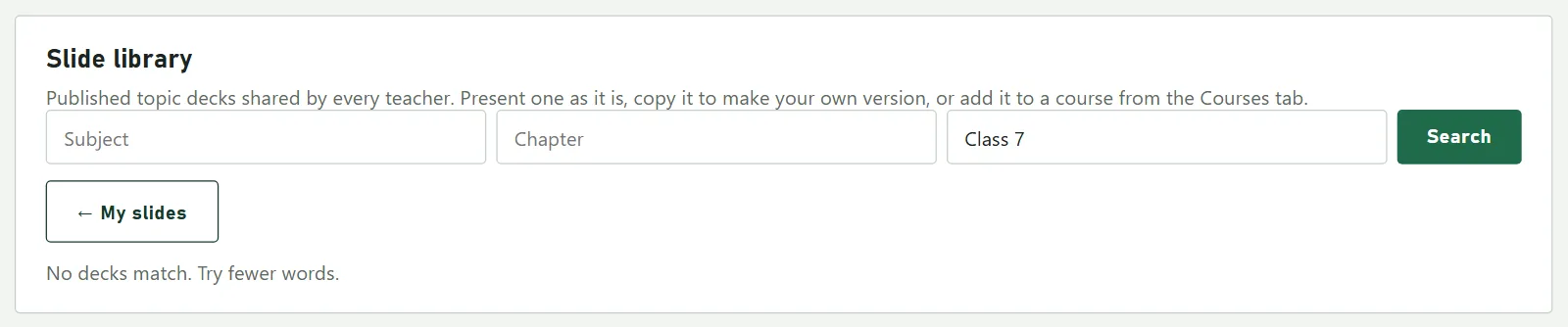
In Learning slides, press Slide library and search by subject, chapter, topic or class. Every shared deck can be previewed; Copy to my slides makes your own copy to change as you like. The other teacher's deck is never touched.
Turn the quiz slides into a test
In the editor, under Share and reuse, press Make a test from this deck. The questions on the deck's quiz slides become a new test, saved as a draft in Tests. Add more questions or change the settings there, then switch it on as the test guide shows.
Courses: a whole subject on one link
A course puts decks in order under chapter headings, like a book's contents page. Students get one link for the whole term instead of a new link every lesson.
Start a course
Open Courses in the left menu. Type a course title (e.g. Class 7 Mathematics), the subject and the class, then press + New course.

Add chapters and topics
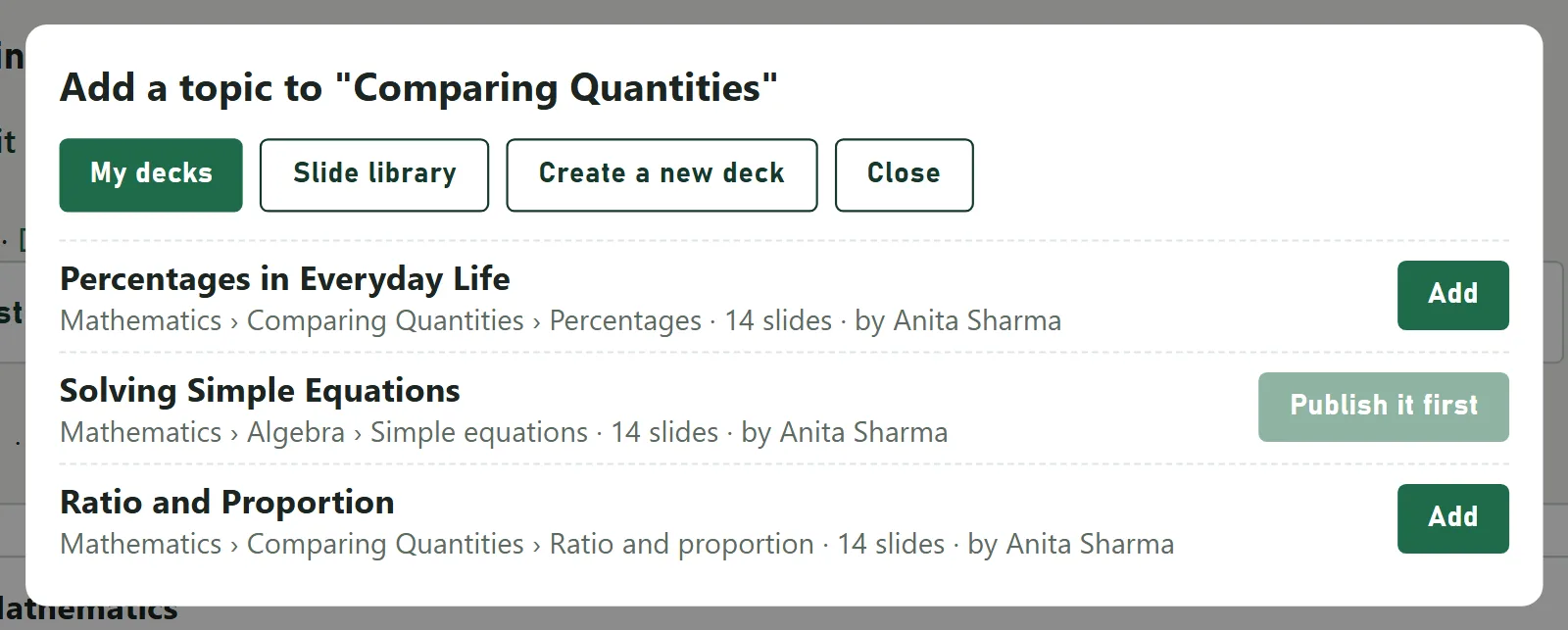
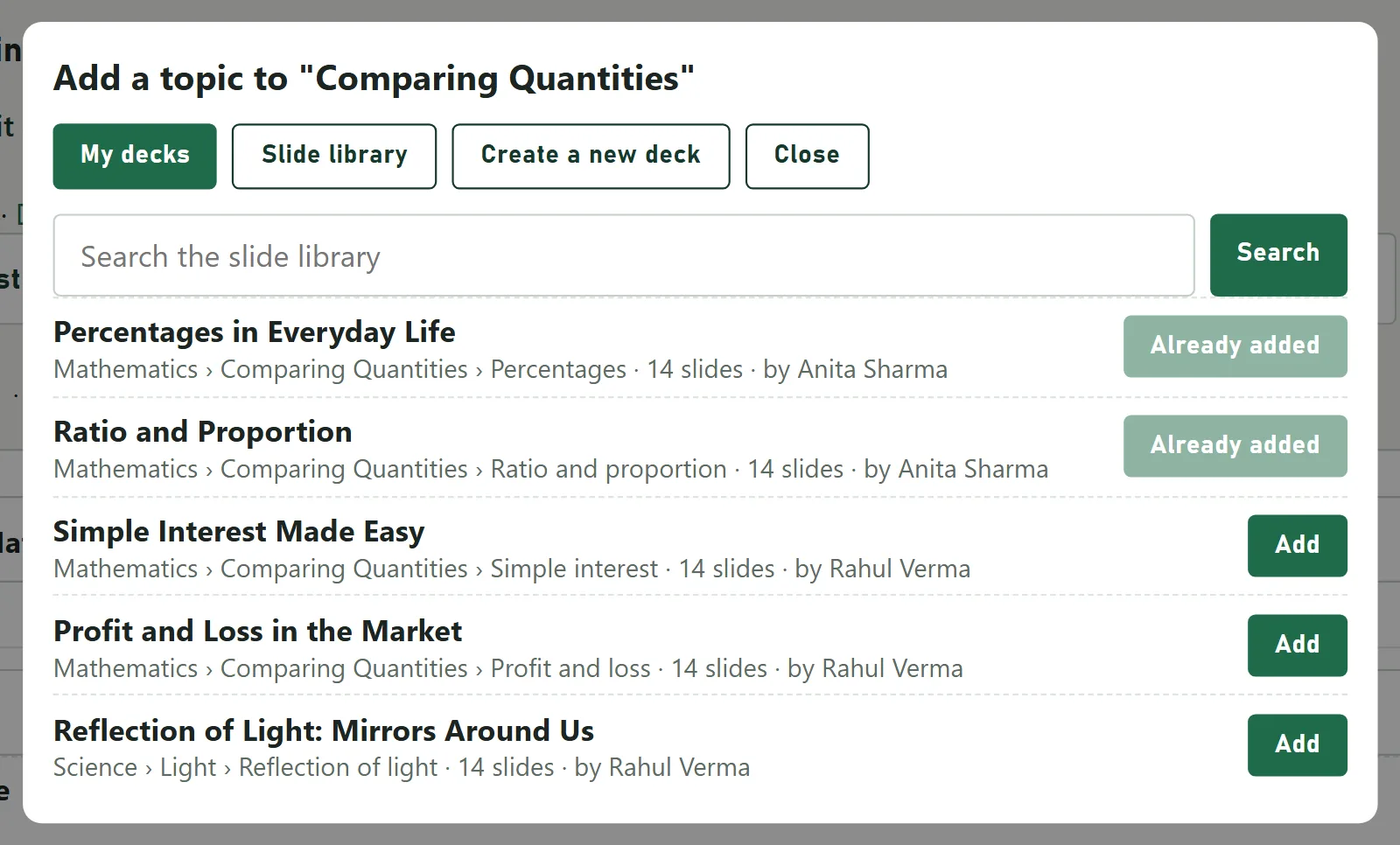
Press + Add chapter and name it. Inside a chapter, + Add topic opens a picker with three choices:
- My decks — your own decks. A draft shows Publish it first: publish it from Learning slides, then add it.
- Slide library — decks other teachers shared. Adding one links to it as it is; Clone to edit in the course gives you your own copy to change.
- Create a new deck — makes a new topic deck (part B).
Save, publish and share the course
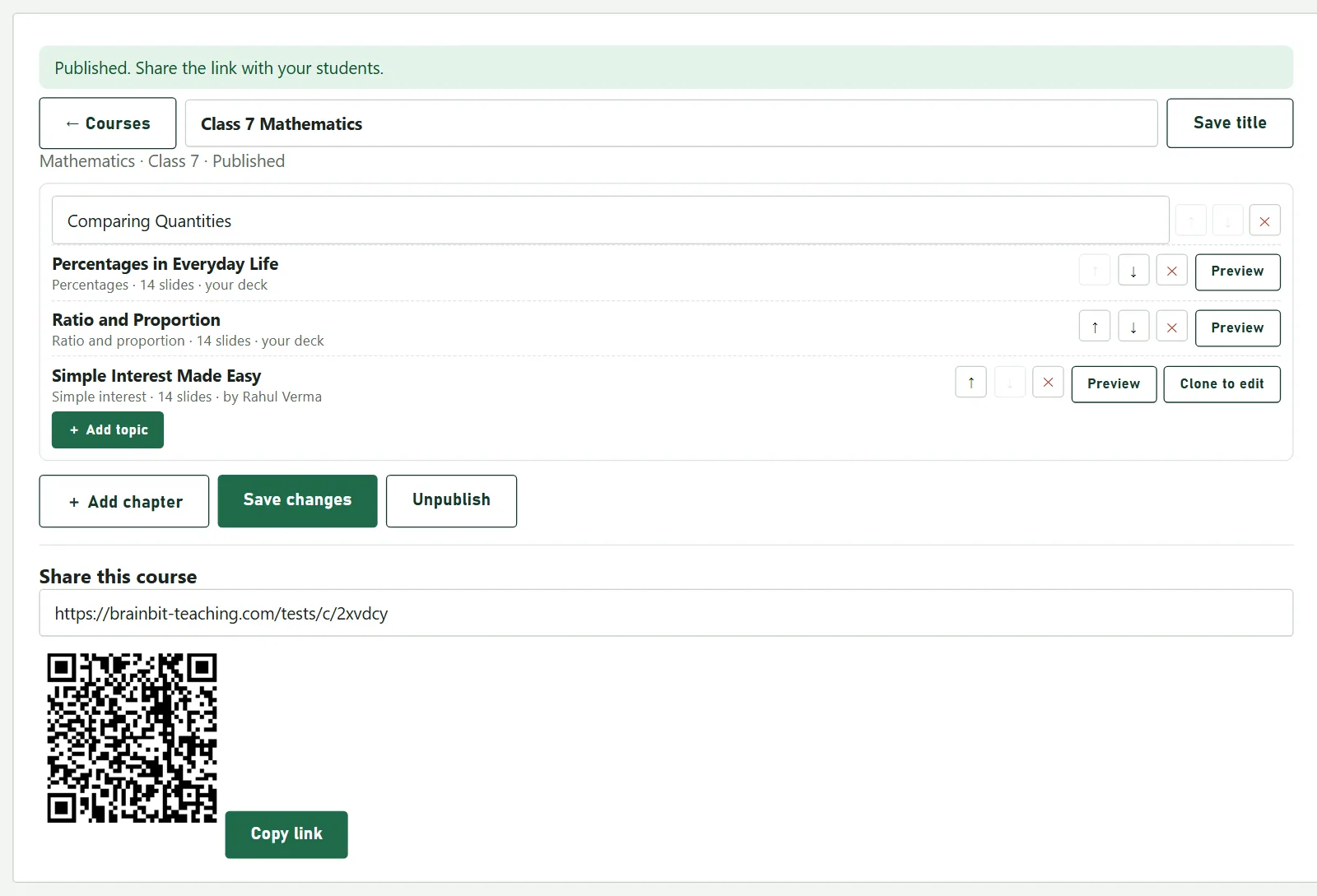
Put chapters and topics in order with ↑ ↓, then press Save changes and Publish. The course gets its own link and QR code under Share this course.
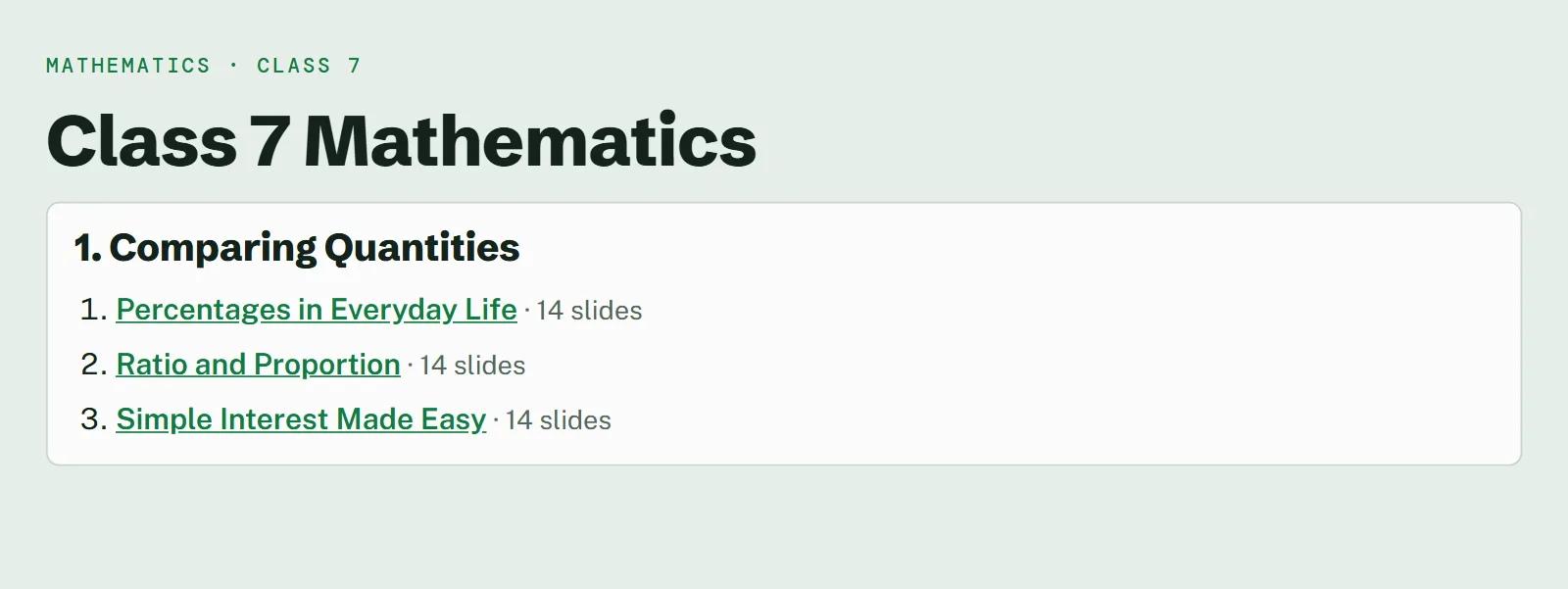
Students open the link and see the chapters and topics in order; each topic opens the deck, with the course's contents one tap away.
Presentations for meetings and events
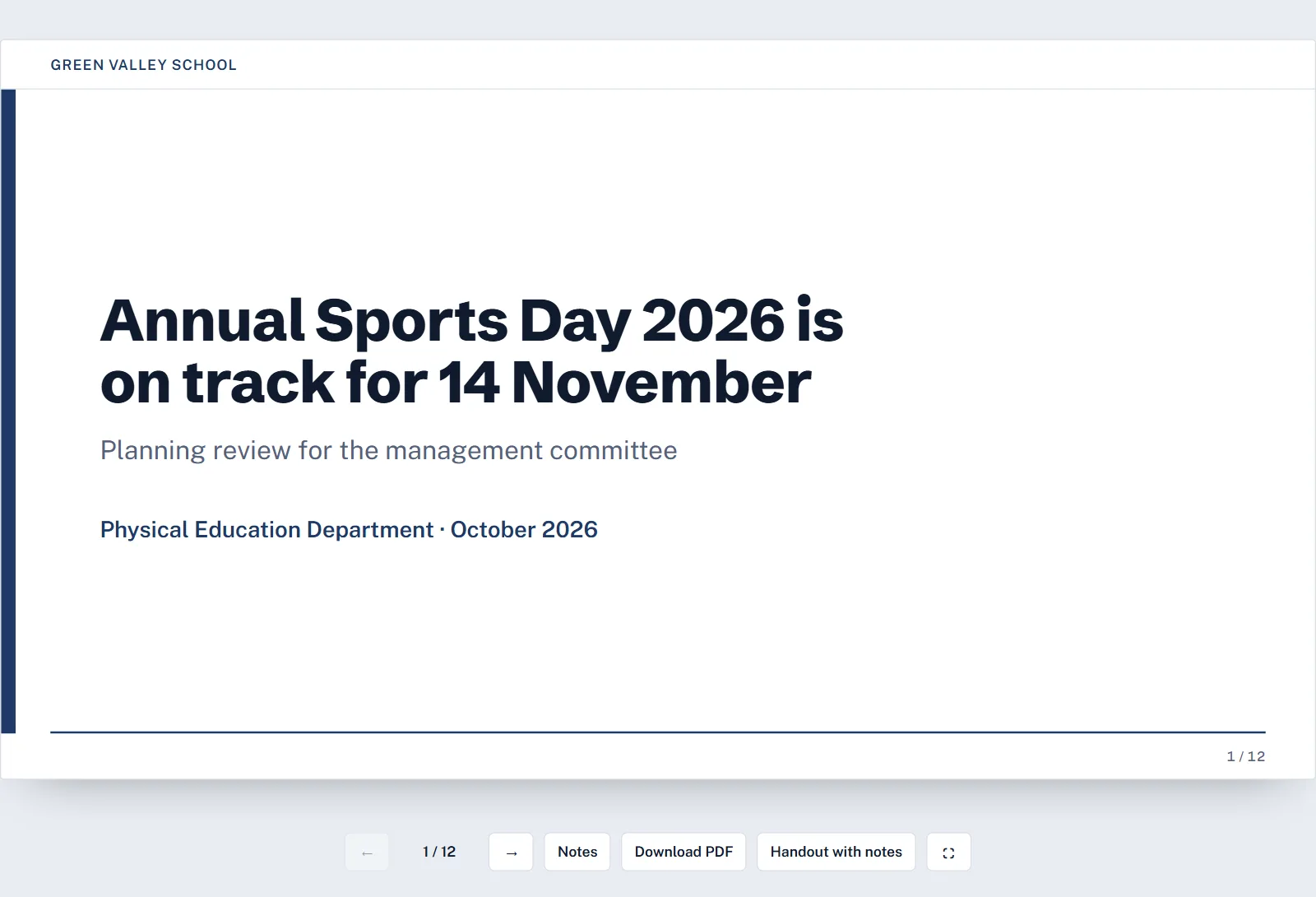
For staff meetings, reports to the management and event planning there is a separate tool, Presentations. It works like a topic deck, with three differences: business slide types (key figures, charts, timelines, people), your organisation's name on every slide, and private sharing with a passcode.
Describe the presentation
Open Presentations in the left menu and press + New presentation. Give it a title, choose the kind (event, report, announcement, meeting or other), and add the audience, your organisation's name, the date, the language and the number of slides (6 to 20).
Then answer Where are the facts? so the AI uses your facts, not made-up ones:
- In a document I will attach in the AI chat — a circular, minutes, an Excel sheet or a report. You attach it in your own AI app in the next step; the site never sees the document, only the finished slides.
- I will type the key facts below — write them in Key facts or notes for the AI (up to 2000 characters): dates, numbers, names.
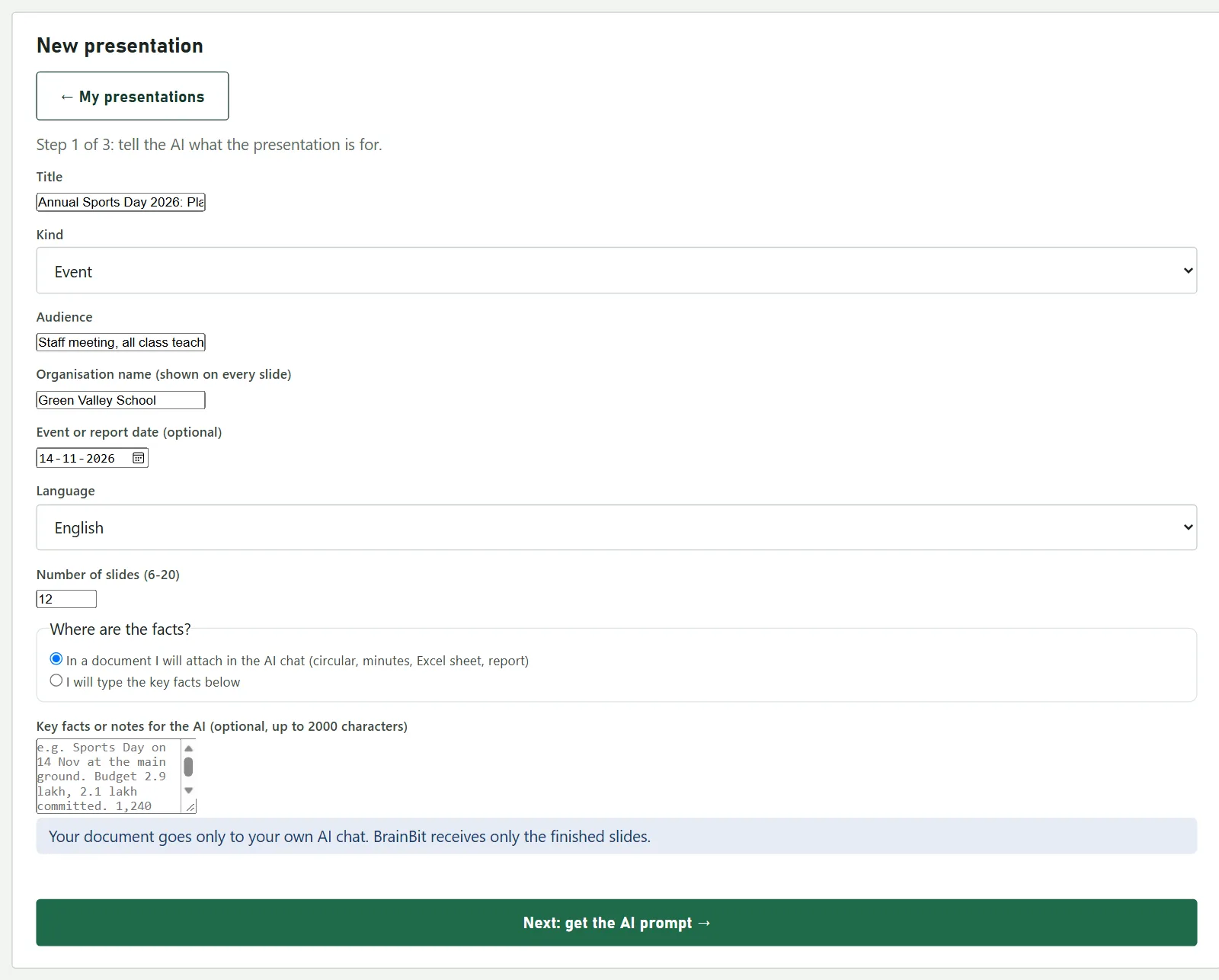
Press Next: get the AI prompt →, copy the prompt into your AI app (attach your document there first, if you chose that), paste the reply back and press Check the reply — the same as for a topic deck (steps 3 and 4).
Check the slides and the settings
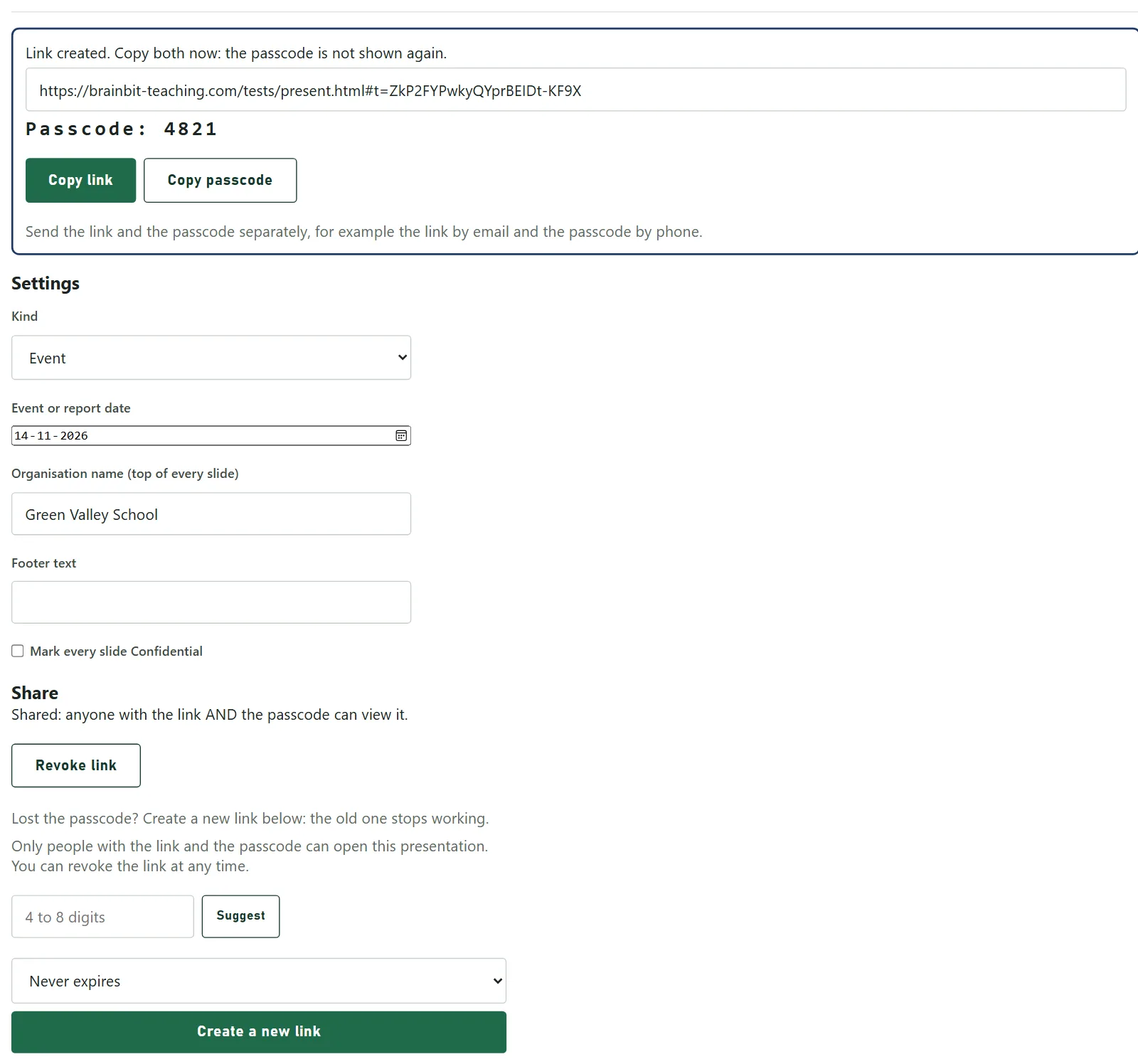
The editor is the same as for decks. Each slide also has speaker notes: viewers see them only if they press Notes or print the handout. Under Settings you can change the kind, date, organisation name and footer, or mark every slide Confidential.
Share it with a passcode
Presentations are never in any library. To show one to others, type a passcode of 4 to 8 digits (or press Suggest), choose when the link expires, and press Create share link.
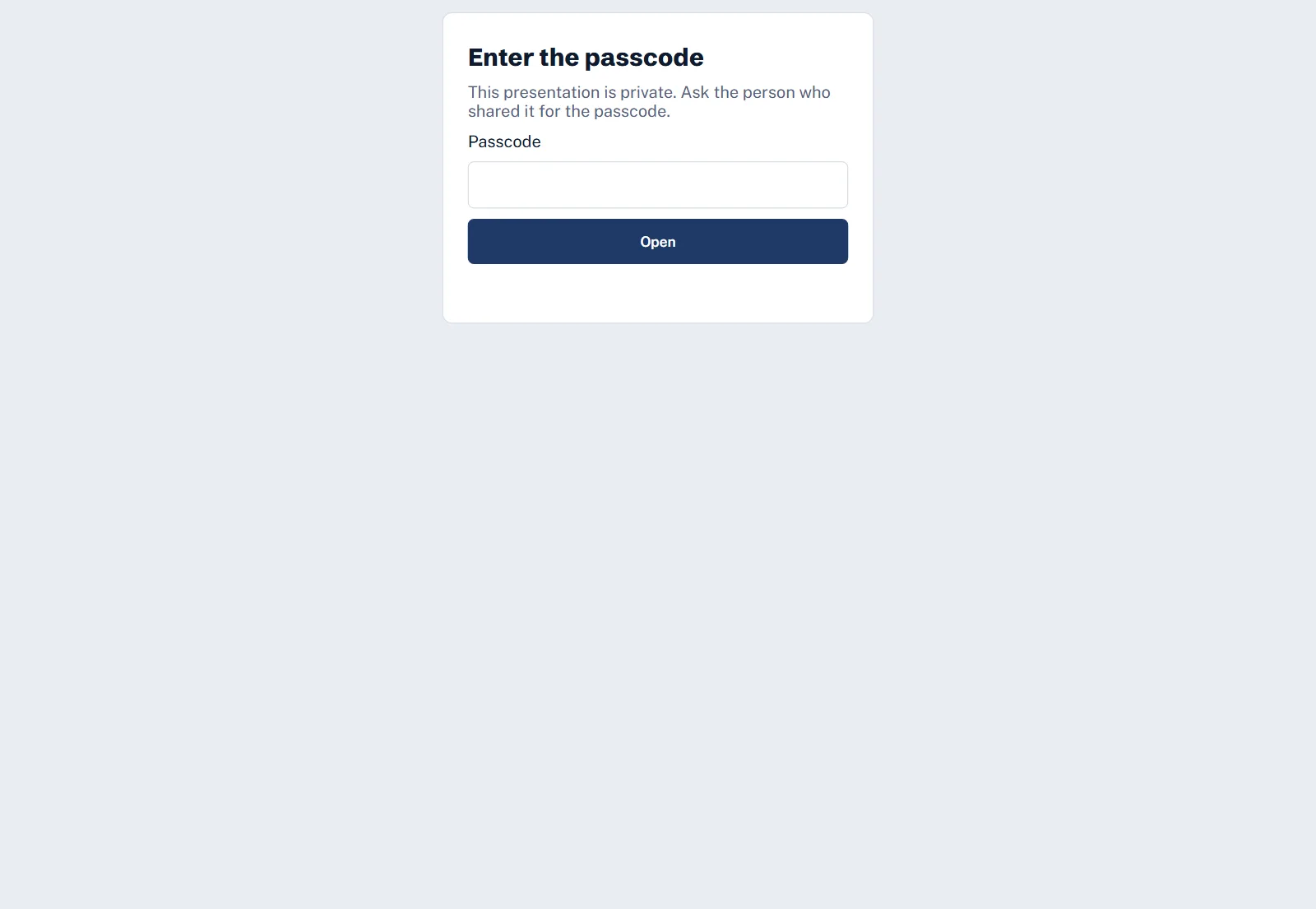
Whoever opens the link types the passcode, then sees the slides. They can also press Download PDF or Handout with notes.
When something does not work
“No usable slides were found” or “not valid JSON”
The paste was cut short, or the AI wrote ordinary text instead of slides. Go back to the AI app, use its copy button under the answer (not a selection by hand), and paste again. If the AI added a long explanation, ask it: “Reply with only the JSON, nothing else.”
Some slides are listed under “Left out”
Those slides were broken in the AI's reply. The rest are fine. Create the deck, then add the missing slide yourself in the editor, or ask the AI to redo just that slide.
Publish says there are problems
Drafts are allowed to be untidy; published decks are not. The list says which slide and what to fix — usually text over the limit (the counter is red), a required box left empty, or a quiz question with no correct answer chosen. Click a problem to jump to it.
Students say the link shows an old version
You edited after publishing. Press Publish changes in the editor.
I cannot delete a deck
Other teachers have put it in their courses. Press Unpublish instead: it disappears from the library, and their courses keep the last version they had.
“Plan limit reached”
Your plan allows a set number of new decks per day and in total; the message says which. Daily limits reset at midnight. To raise them, open Plan & payments in the left menu of the teacher portal.
I don't see the ✨ Generate button
It needs Premium Plus and some AI credit. If it says your credit is used up, press Add money or open Plan & payments. The free copy-and-paste way on the same screen works on every plan.
Make a test says “Add a quiz slide first”
The deck has no quiz slide. Add one in the editor (choose Quiz under the slide list and press + Add slide), fill in the questions and the correct answers, then try again.
The whole thing on one page
A topic deck, start to finish
| 1 | Log in at brainbit-teaching.com/tests/teacher.html and open Learning slides |
| 2 | Press + New topic deck: subject, chapter, topic, class, number of slides |
| 3 | Copy prompt, paste it into ChatGPT, Gemini or Claude — or press ✨ Generate on Premium Plus and skip to 5 |
| 4 | Copy the AI's whole reply, paste it back, press Check the slides |
| 5 | Press Step 3, read every slide, fix what you want |
| 6 | Press Publish, then Copy link or show the QR code |
| 7 | In class: Present. After edits: Publish changes |
| 8 | Optional: Make a test from this deck, or add it to a course |